When building or buying a PC, you’ll notice various ports on the case's I/O panel. While they might look similar at first glance, the difference between USB 2.0 and USB 3.0 is significant. Whether you are transferring huge video files or just connecting a mouse, knowing which port to use matters.
Here is the ultimate breakdown of how to tell them apart and why it affects your performance.
The Speed Difference
USB 2.0
Max speed of 480 Mbps (60 MB/s). It is best suited for low-bandwidth peripherals like mice, keyboards, and printers.
USB 3.0
Max speed of 5 Gbps (625 MB/s). This is roughly 10 times faster than USB 2.0, making it essential for external hard drives and thumb drives where speed counts.
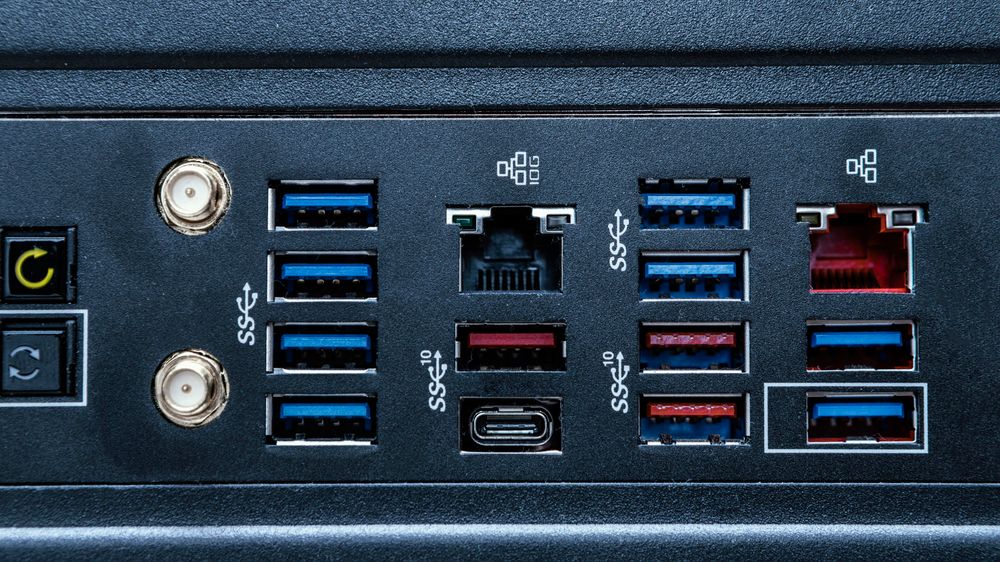
Visual Identification (The Color Test)
USB 2.0
Typically Black or White.
USB 3.0
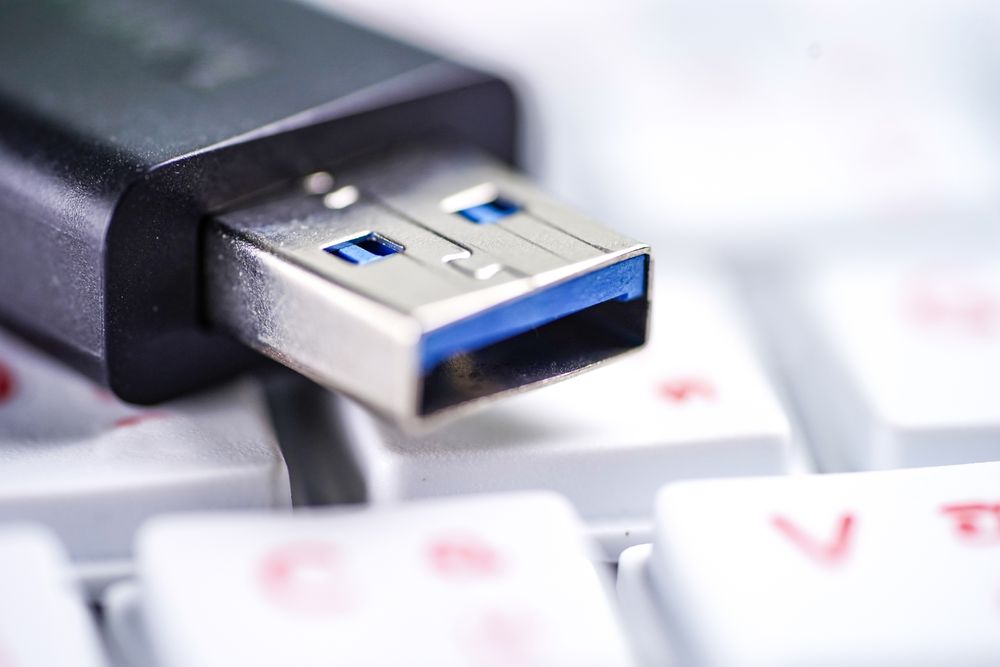
Standardized as Blue. This makes it easy to spot the high-speed ports instantly.
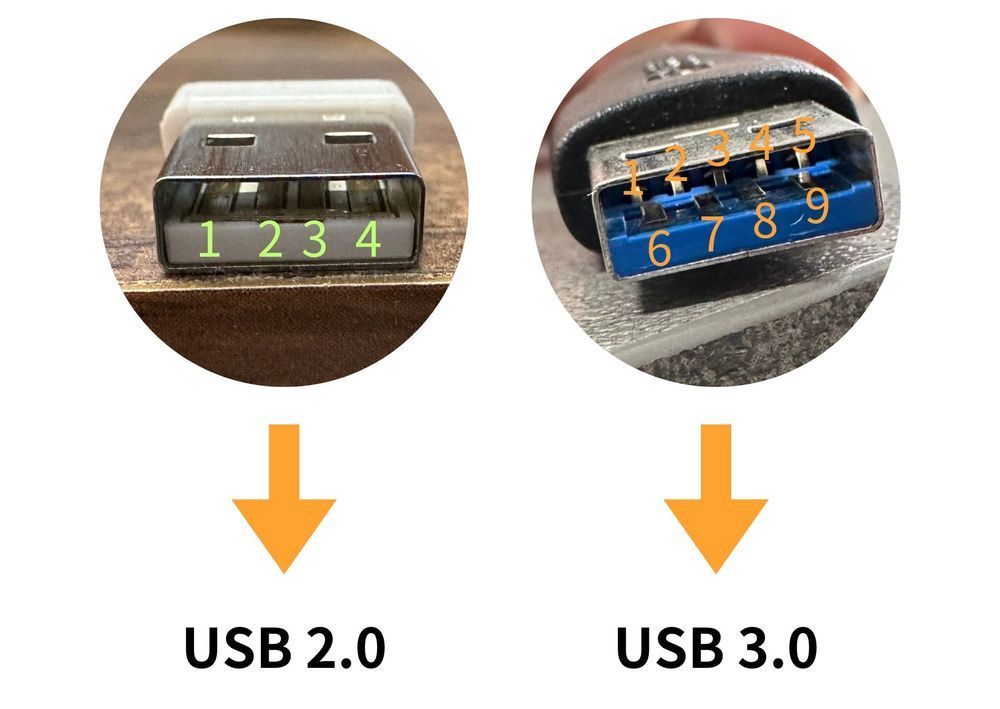
Note: USB 3.0 also features more internal pins (9 pins vs. 4 pins).
How Data Travels (Duplex Capabilities)
USB 2.0 (One-Way Traffic)
It operates on a "Half-Duplex" system. Data can only flow in one direction at a time (sending OR receiving).
USB 3.0 (Two-Way Traffic)
It utilizes a "Full-Duplex" system with dual data paths. This allows it to send and receive data simultaneously, drastically improving efficiency.
Compatibility
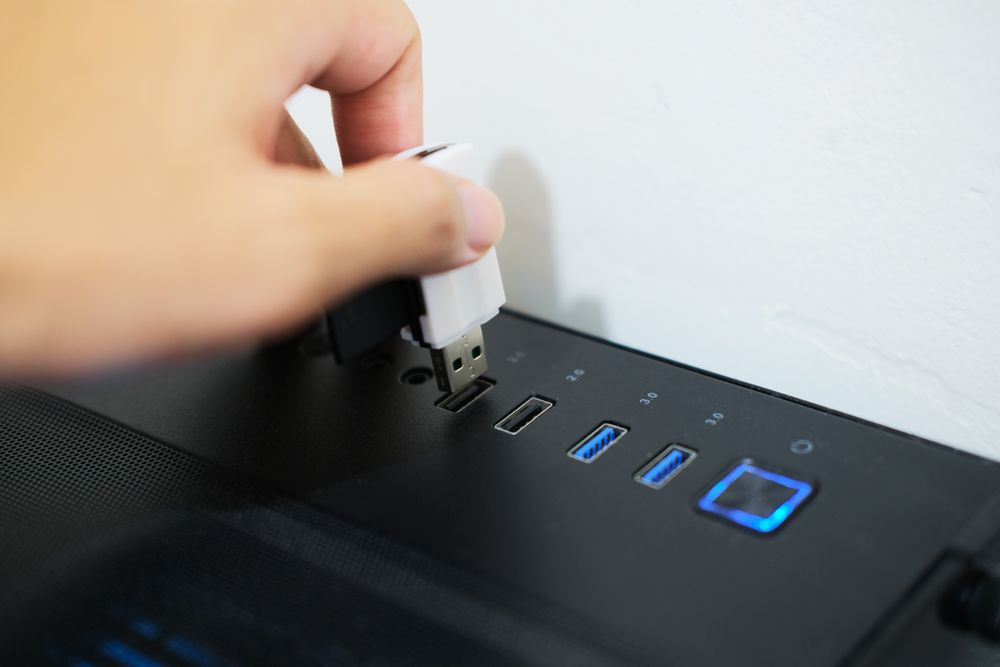
The good news is that the Type-A connector (the standard rectangular shape) is physically compatible between generations.
You can plug a USB 3.0 drive into a USB 2.0 port (and vice versa).
However, the speed will always default to the slowest standard involved. Plugging a fast drive into a slow port means you are stuck at USB 2.0 speeds.
Conclusion
While USB 2.0 is still perfectly fine for your mouse and keyboard, USB 3.0 is a must-have for data transfer. When choosing a computer case, always check the I/O panel to ensure you have enough blue USB 3.0 ports to handle your external storage needs.