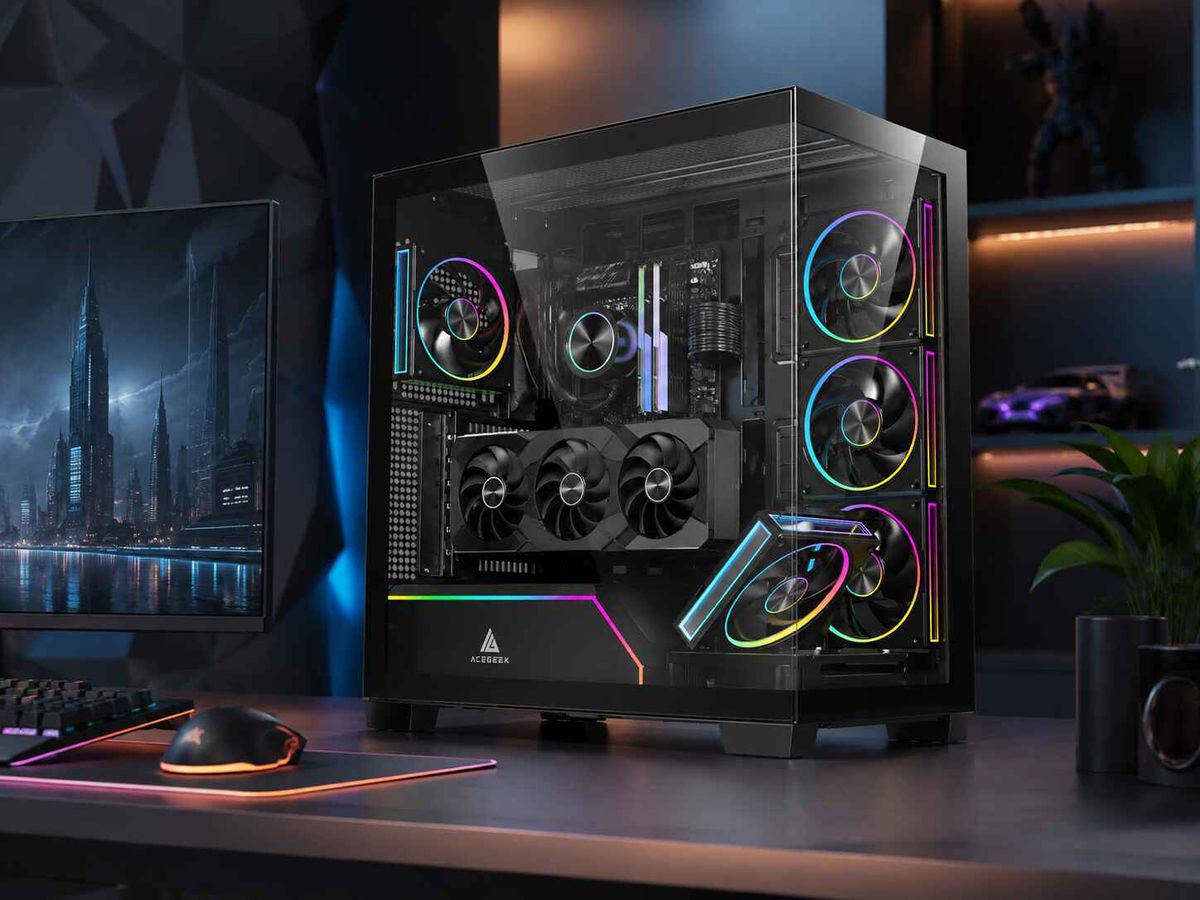
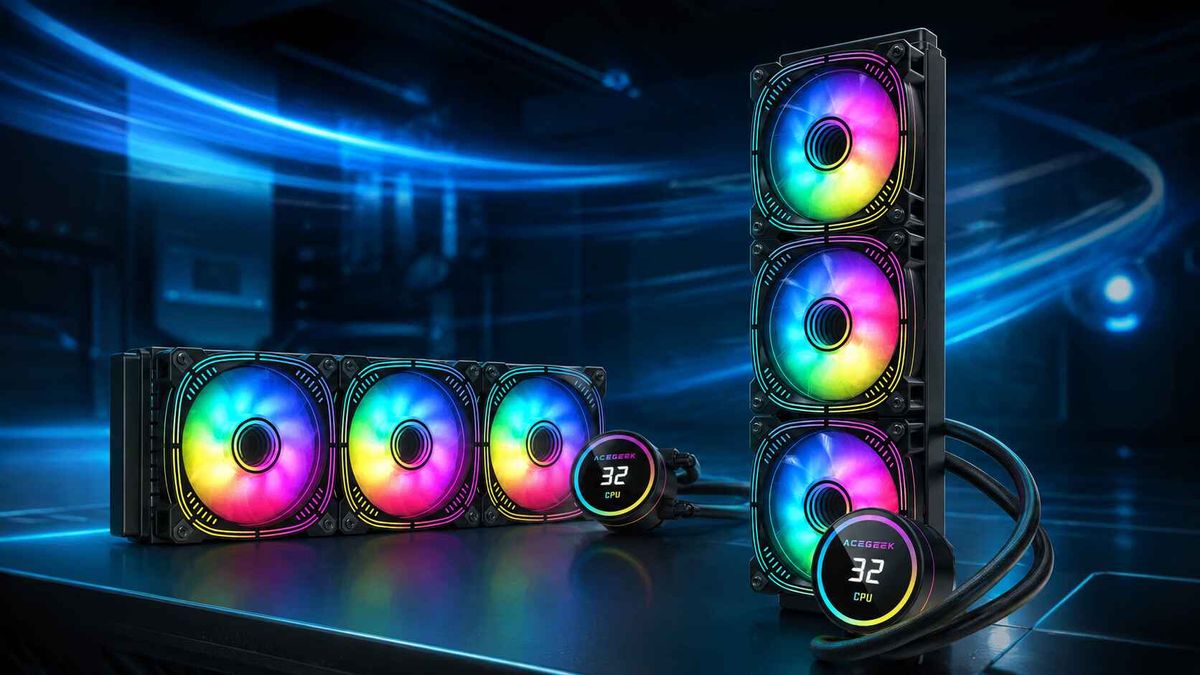
So prüfen Sie die vollständige Kompatibilität Ihrer PC-Komponenten vor dem Kauf
Die ungeschminkte Wahrheit: Kompatibilitätstools sind hilfreich, aber nicht unantastbar.
Technische Daten können täuschen.
Ein Kompatibilitätsprüfer für PC-Komponenten kann Sie vor offensichtlichen Problemen bewahren – falschem CPU-Sockel, nicht unterstütztem RAM-Typ, zu kleinem Netzteil oder einer Grafikkarte, die physisch nicht passt. Er erkennt jedoch nicht immer BIOS-Timing-Probleme, Kabelbiegespannungen, Radiatorversatz, Kollisionen des VRM-Kühlkörpers oder die Tatsache, dass eine „kompatible“ Komponente die Installation einer anderen Komponente erheblich erschwert. Warum also betrachten Käufer ein grünes Häkchen immer noch als Garantie?
Ich will es ganz deutlich sagen: Die Branche hat die Verbraucher darauf trainiert, Preise zu vergleichen, nicht Systeme.
So kommt es, dass man eine tolle Teileliste hat, die auf den letzten 10 Millimetern versagt. Die CPU passt aufs Mainboard. Die GPU passt ins Gehäuse. Der Kühler passt auf den Sockel. Doch dann blockiert der 360-mm-Radiator die RAM-Halterungen, das 12-V-Netzteil wird am Glas zu stark geknickt, und das empfohlene 850-Watt-Netzteil wirkt plötzlich wenig überzeugend, sobald kurzzeitige Spannungsspitzen, RGB-Hubs, Lüfter und eine stromhungrige CPU ins Spiel kommen.
Auch Retouren sind kein harmloser Notfallplan. Laut dem US-amerikanischen Einzelhandelsverband NRF werden die Retouren im Einzelhandel bis 2024 voraussichtlich 890 Milliarden US-Dollar erreichen. Einzelhändler schätzen, dass 16,9 % des Jahresumsatzes zurückgegeben werden, wie aus dem Retourenbericht 2024 hervorgeht. Das sind die Kosten, die die „Ich schicke es einfach zurück“-Mentalität mit sich bringt. Für PC-Bastler bedeuten sie zusätzlich Zeitaufwand, verbogene Pins, zerkratzte Panels, Bearbeitungsgebühren und ein langes Wochenende.
Bevor Sie kaufen, verwenden Sie für den ersten Durchgang ein Tool wie PCPartPicker . Den zweiten Durchgang können Sie dann selbst durchführen.
Im zweiten Durchgang bleibt die eigentliche Konstruktion erhalten.
Beginnen wir mit der Plattform: CPU, Sockel, Chipsatz, BIOS und RAM
Die erste Kompatibilitätsfrage lautet nicht „Intel oder AMD?“
Die Frage ist folgende: Passt die Prozessorplattform zur heutigen Motherboard-Plattform, und zwar zur BIOS-Version, mit der das Board tatsächlich ausgeliefert wird?
Für AMD sieht die AM5-Geschichte auf dem Papier vielversprechend aus. Laut AMD sind AM5-Mainboards der Ryzen 600er- und 800er-Serie mit AM5-Prozessoren kompatibel , einschließlich der Ryzen 7000er-, 8000er- und 9000er-Serie. Allerdings kann für einige Ryzen 8000er- und 9000er-Chips auf Mainboards der 600er-Serie ein BIOS-Update erforderlich sein, wie auf der AMD -Seite zum Socket AM5-Chipsatz zu lesen ist . Genau hier liegt das Problem für Einsteiger.
„Kompatibel nach BIOS-Update“ ist nicht dasselbe wie „funktioniert sofort nach dem Auspacken“.
Wenn ich eine Bauliste überprüfe, achte ich auf diese vier Punkte, bevor ich mich überhaupt mit der Ästhetik beschäftige:
Kompatibilitätsprüfung – Was zu prüfen ist – Häufige Fehler – Meine Faustregel – CPU-Sockel: AM5, LGA1700, LGA1851 usw. – CPU lässt sich physisch nicht installieren – Sockel zuerst prüfen, Chipsatz danach – Chipsatzunterstützung: B650, X870E, Z790, B760 usw. – CPU wird erst nach BIOS-Update unterstützt – Mainboard-Unterstützungsseite prüfen – RAM-Typ: DDR4 vs. DDR5 – RAM passt nicht oder wird nicht korrekt angesteuert – Niemals Generationen mischen – Speicher-QVL / EXPO / XMP – Exakte Kit-SKU, Geschwindigkeit, Kapazität – Boot-Schleifen, instabile Profile mit 6000 MT/s+ – Mainboard-QVL und Hinweise des CPU-Herstellers prüfen
AMD veröffentlicht außerdem eine Liste zur Kompatibilität von Ryzen-Speicher , in der die aufgeführten Kits von Speicherpartnern auf Nenngeschwindigkeit und Latenz getestet wurden, einschließlich XMP- oder AMD EXPO DDR5-Profilen. Das bedeutet nicht, dass alle nicht aufgeführten Kits schlecht sind. Ein aufgeführtes Kit liefert Ihnen lediglich eine aussagekräftigere Bewertung.
Nutzen Sie das Tool. Überprüfen Sie anschließend die Artikelnummer (SKU).
Das bedeutet exakte Modellnummern, nicht Familiennamen. „Corsair Vengeance DDR5“ reicht nicht aus. „CMK32GX5M2B6000Z30“ ist die Art von Kennung, die zählt.
Wenn Sie noch auf der Suche nach dem passenden Gehäuse sind, lohnt es sich, die PC-Gehäusekollektion von AceGeek als Orientierungshilfe zu nutzen, da sie praktische Filter wie Mainboard-Unterstützung, Unterstützung für Wasserkühlungen, ATX-, M-ATX-, ITX- und 360-mm-AIO-Kategorien bietet, anstatt jeden Midi-Tower als den gleichen Metallkasten zu behandeln.
Die Kompatibilitätsfalle, die niemand beachtet: Gehäusefreigabe
Hier beginnt das Problem mit der Tabellenkalkulation.
Ein Kompatibilitätscheck für Computerkomponenten kann Ihnen zwar anzeigen, ob ein Gehäuse ATX unterstützt und die GPU-Länge unter dem angegebenen Maximum liegt. Er zeigt Ihnen aber möglicherweise nicht an, dass die Dicke eines Frontradiators 27 bis 38 mm Platz für die GPU beansprucht, dass die Lüfter an der Unterseite mit einer dicken Grafikkarte kollidieren oder dass die Halterung für den oberen Radiator zu nah an hohen RGB-DDR5-Speichern liegt.
Ein Gehäuse ist nicht nur ein Behälter. Es ist das physische Zusammenspiel von Wärme, Kabelwegen, Paneelen, Laufwerkskäfigen, Lüfterschienen und menschlichen Fingern.
Betrachten wir ein konkretes Beispiel. Das AceGeekMercury R424 Pro bietet Unterstützung für ATX/M-ATX/ITX-Mainboards, eine maximale GPU-Höhe von 410 mm , eine maximale CPU-Kühlerhöhe von 165 mm , Unterstützung für 360-mm-AIO-Wasserkühlungen an Ober- und Seitenwand sowie sieben PCIe-Steckplätze. Das AceGeekNebula Pro bietet ebenfalls Unterstützung für ATX/M-ATX/ITX, eine maximale GPU-Höhe von 420 mm , eine maximale CPU-Kühlerhöhe von 175 mm und Unterstützung für 360-mm-AIO- Wasserkühlungen an der Oberseite. Diese Angaben sind hilfreich, da sie verschiedene Kompatibilitätsbereiche aufzeigen und nicht nur ein einzelnes Marketing-Logo.
Aber hören Sie damit nicht auf.
Wenn Ihre Grafikkarte 358 mm lang ist und Ihr Gehäuse 410 mm Platz bietet, bleiben Ihnen keine 52 mm Spielraum, falls ein Frontradiator, ein Lüfterblock, ein Kabeladapter oder eine Lufteinlasshalterung diesen Platz belegt. Wenn Ihr Luftkühler 165 mm hoch ist und das Gehäuse 165 mm unterstützt, ist das kein Garant für Sicherheit. Es ist ein Glücksspiel, abhängig von Fertigungstoleranzen, der Flexibilität der Seitenwand und Vibrationen.
Für eine detaillierte Planung der Kühlung sollten Sie vor dem Kauf einer 360-mm-AIO-Wasserkühlung den AceGeek -Leitfaden zur optimalen Radiatorplatzierung lesen. Dieser stellt das Problem korrekt in Bezug auf die RAM-Höhe, die Schlauchführung, die Mainboard-Kühlkörper und den Wartungsabstand dar – und nicht nur die Radiatorlänge.
Meine Checkliste für die Sicherheitsüberprüfung in der Praxis
Teilenummer zum Notieren Gefahrenbereich Was ich vor dem Kauf wissen möchte GPU-Länge 300–420 mm (typisch) Frontradiator, Kabelbiegung, Festplattenkäfig 20–30 mm zusätzlicher Platz nach der gesamten Fronthardware GPU-Dicke 2- bis 4-Slot-Lüfter unten, vertikale Montage, Luftstrom Mindestens ein freier Lufteinlass CPU-Luftkühlerhöhe 150–170 mm (üblich) Seitenwand aus Glas oder Mesh 5 mm+ Rand, nicht null AIO-Radiatordicke 27–38 mm (üblich) RAM, EPS-Kabel, VRM-Kühlkörper Radiator + Lüfter + Schraubenspielraum Lüfterdicke 25 mm (typisch) Konflikte zwischen Top- und Seitenmontage Alle Lüfter zählen, nicht nur den Radiator RAM-Höhe 31–45 mm (üblich) Lüfterrahmen für den oberen Radiator Flacher RAM für kompakte Top-AIO-Builds Netzteillänge 140–80 mm (üblich) Kabelbiegung und Festplattenkäfig Kabelplatz hinter dem Gerät lassen
Und ja, das ist mühsam.
Genau darum geht es. Ein sauberer Build besteht größtenteils aus langweiligen Rechenoperationen, die vor dem Bezahlvorgang durchgeführt werden.
Die Kompatibilität eines Netzteils hängt nicht nur von der Wattzahl ab.
Der Abschnitt zur Stromversorgung in einem Kompatibilitätscheck für PC-Konfigurationen ist in der Regel zu zurückhaltend.
Es schätzt die Wattzahl. Gut. Die Kompatibilität des Netzteils für die Grafikkarte hängt aber auch von Steckertyp, Kabelqualität, kurzzeitiger Belastung, ATX-Standard, Schienenverhalten, der physischen Länge des Netzteils und der Frage ab, ob das Kabel genügend Spielraum zum Biegen hat, ohne den Stecker zu belasten.
Intel gibt auf seiner offiziellen Produktseite für den Core i9-14900K eine Basisleistungsaufnahme von 125 W und eine maximale Turbo-Leistung von 253 W an. Diese einzelne CPU kann im Turbo-Modus mehr Strom ziehen als ganze ältere Gaming-PCs unter Volllast. Kombiniert man sie mit einer High-End-Grafikkarte, wird die Idee eines günstigen Netzteils schnell gefährlich.
Die Sicherheitsgeschichte untermauert diese Vorsicht. Im April 2026 rief die US-amerikanische Kommission für Produktsicherheit (CPSC) rund 17.730 ATX-Netzteile der Marken Manik und Apex sowie etwa 500 in Kanada verkaufte Geräte zurück, da diese laut CPSC-Rückrufmitteilung keinen permanenten Warnhinweis zu Stromschlag- und Lebensgefahr beim Öffnen oder Zerlegen aufwiesen.
Bei dem Rückruf ging es um Kennzeichnung und Sicherheitshinweise, nicht um Ihre konkrete Gaming-Konfiguration. Dennoch verdeutlicht er den Punkt: Bei der Stromversorgung sollte man nicht improvisieren.
Meine Regel für Netzteile ist einfach: Reale Last berechnen, sinnvolle Reserve hinzufügen, Anschlüsse überprüfen und dann die physische Installation kontrollieren.
Für einen modernen Gaming-PC bedeutet das:
Maximale Turbo-Leistung der CPU, nicht nur die Basis-TDP
GPU-Platinen-Stromversorgung und empfohlene Netzteilrichtlinien
Native 12V-2x6- oder 12VHPWR-Unterstützung, falls erforderlich
Genügend PCIe-8-Pin-Kabel ohne unsichere Splitter-Gewohnheiten
PSU-Längenspielraum im Gehäuse
Kabelbiegeraum hinter der Seitenwand
80 PLUS- oder Cybenetics-Effizienzdaten
Bekannter OEM-/Plattform-Ruf, nicht nur Markenaufkleber
Und nein, ein No-Name-Gerät mit „1000 W“ ist nicht automatisch sicherer als ein renommiertes 850-W-Gerät.
Das Label ist nicht die Bauversion.
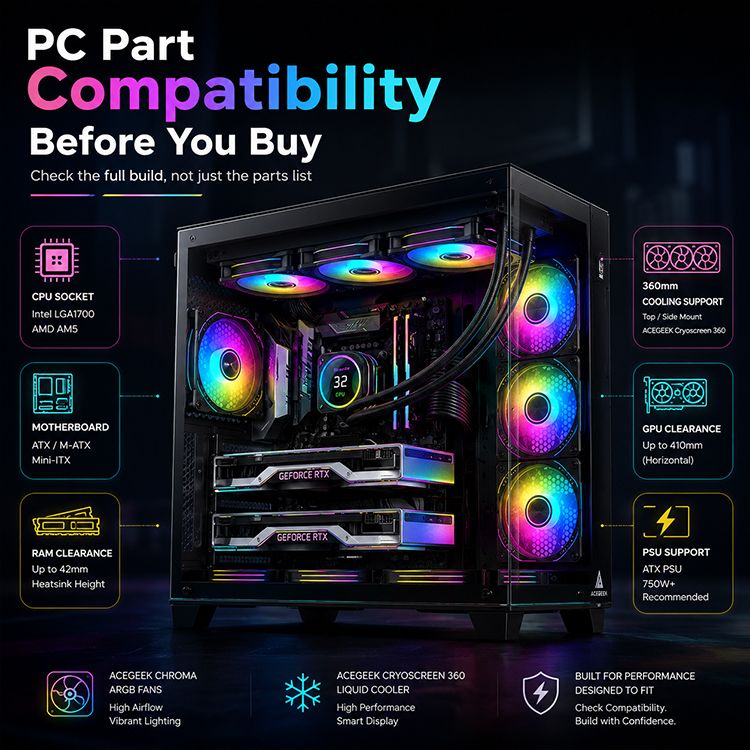
Kühlleistung: Hitze kennt keine Rücksicht auf Marketingfotos
Die meisten Leute überprüfen, ob der Kühler auf der CPU montiert werden kann.
Das ist der erste Schritt. Nicht das Ziel.
Ein Kühler kann AM5 oder LGA1700 unterstützen und trotzdem nicht zum System passen. Vielleicht bekommt der Radiator nicht genug Luft. Vielleicht benötigt die Pumpe einen Anschluss, der auf dem Mainboard nicht optimal zugänglich ist. Vielleicht ist der Arbeitsspeicher zu hoch. Vielleicht hat das Gehäuse Glas vor den Lüftern, und das gesamte System wird warm, weil die Luft durch die seitlichen Lüftungsschlitze strömen muss.
Die Kategorie „CPU-Kühler“ von AceGeek ist hilfreich, um festzustellen, ob Sie eine Kühllösung der 120-mm-, 240-mm- oder 360-mm-Klasse planen. Die Kategorie „Lüfter“ erinnert Käufer außerdem daran, dass Luftzirkulation ein System ist und nicht nur durch den Kauf eines einzelnen Radiators gewährleistet werden kann.
Die Wärmedichte ist nicht nur ein Problem für Hobby-PC-Bastler. Reuters berichtete im März 2026, dass Ecolab die Übernahme von CoolIT Systems für rund 4,75 Milliarden US-Dollar vereinbart hat, um die Nachfrage nach Flüssigkeitskühlung in KI-Rechenzentren zu bedienen. Dort treiben höhere Chipdichten und Leistungsaufnahmen die Investitionen in Kühlung in die Höhe. Das ist die Unternehmensversion der gleichen physikalischen Gesetze, mit denen PC-Hersteller in einem 40-Liter-Gehäuse zu kämpfen haben.
Stellen Sie also die unangenehmen Fragen:
Passt der CPU-Kühler auf den Sockel und in das Gehäuse?
Prüfen Sie die Sockelhalterungen, die Höhe des Kühlers, die Position des Radiators und mögliche Hindernisse auf dem Mainboard. Ein Tower-Kühler kann zwar den CPU-Sockel freigeben, aber über den ersten RAM-Steckplatz hinausragen. Eine 360-mm-AIO-Wasserkühlung passt möglicherweise unter das Gehäuseoberteil, blockiert aber das EPS-Kabel oder die RAM-Halterungen.
Werden die Ventilatoren die Luft dorthin bewegen, wo sich die Wärme tatsächlich befindet?
Ein Frontlüfter hinter einer geschlossenen Abdeckung ist nicht dasselbe wie ein Frontlüfter hinter einem Gitter. Ein Lufteinlass an der Unterseite kann eine dicke GPU mit Frischluft versorgen. Ein Luftauslass an der Oberseite trägt dazu bei, die Wärme des CPU-Kühlers abzuführen. Ein Luftauslass an der Rückseite ist weiterhin wichtig.
Die Analyse von AceGeek zu Gehäusegröße und Kühlleistung liefert die richtige Argumentation: Größe allein bestimmt nicht den Luftdurchsatz. Einschränkungen durch die Seitenwand, Druck, Lüfterposition und Wärmeableitung der GPU sind wichtiger als das leere Innenvolumen.
Werden die Software und die Treiber funktionieren?
Verfügt Ihr Kühler über ein Display, USB-Steuerung oder RGB-Software, prüfen Sie vor dem Kauf die Treiber. Auf der Treiber-Downloadseite von AceGeek finden Sie Downloads für Produkte wie den Cryoscreen 360 und Kühler der Temp-Serie – genau die Art von Supportseite, die ich mir vor der Empfehlung eines Kühlers mit Display wünsche.
Keine Fahrerseite? Nein danke.
Der manuelle PC-Teilekompatibilitätsprüfer, dem ich tatsächlich vertraue.
Automatisierte Tools sind der Empfang. Diese Checkliste ist der Inspektionsraum.
Befolgen Sie diese Reihenfolge, bevor Sie etwas kaufen:
Wähle zuerst die CPU.
Passend zum Motherboard-Sockel.
Chipsatzunterstützung bestätigen.
Prüfen Sie, ob das BIOS die Kompatibilität mit Ihrer CPU unterstützt.
Bestätigung: DDR4 vs. DDR5.
Prüfen Sie die RAM-QVL oder die Kompatibilitätsliste des Herstellers.
GPU-Schnittstelle, Länge, Dicke und Stromanschluss prüfen.
Überprüfen Sie die Wattzahl des Netzteils, die Anzahl der Anschlüsse, den Kabeltyp und die physische Länge des Netzteils.
Prüfen Sie, ob der CPU-Kühlersockel kompatibel ist und genügend Platz im Gehäuse vorhanden ist.
Prüfen Sie die Positionierung des Radiators im Verhältnis zu RAM, VRM-Kühlkörpern, EPS-Kabeln und GPU-Länge.
Zählen Sie Lüfteranschlüsse, ARGB-Anschlüsse, USB 2.0-Anschlüsse und Frontpanel-Anschlüsse.
Speicherschnittstelle bestätigen: M.2 PCIe Gen 4, PCIe Gen 5, SATA, Lane-Sharing.
Prüfen Sie, ob das Gehäuse mit folgenden Mainboard-Formaten kompatibel ist: E-ATX, ATX, M-ATX, ITX.
Anschlüsse an der Vorderseite: USB-C, USB 3.0, HD-Audio.
Prüfen Sie die Unterstützung durch das Betriebssystem und die erforderlichen Treiber.
Lesen Sie mindestens drei Fotos von realen Builds oder Erfahrungsberichte von Nutzern mit ähnlicher Hardware.
Der letzte Punkt ist wichtig.
Ein Datenblatt beschreibt, was passieren sollte. Ein Foto vom tatsächlichen Bauprozess zeigt, was tatsächlich passiert ist.
Wo PCPartPicker hilft – und wo Sie trotzdem Ihre eigene Hand brauchen
Die Kompatibilitätsprüfung von PCPartPicker eignet sich hervorragend für die erste Filterstufe. Sie erkennt offensichtliche Kompatibilitätsprobleme zwischen CPU und Mainboard, schätzt den Stromverbrauch des Systems, filtert inkompatible Gehäuse heraus und hilft beim Preisvergleich verschiedener Händler.
Aber in Ihrem Gehäuse sitzt kein Maschinenbauingenieur.
Es berücksichtigt möglicherweise nicht vollständig Folgendes:
Hohe VRM-Kühlkörper auf dem Motherboard in der Nähe des oberen Radiators
Dickes GPU-Kabel mit ausreichendem Biegeabstand zum Glas
Frontkühler reduziert GPU-Platz
Lüfter an der Unterseite unter einer 3,5-Slot-Grafikkarte
RAM-Höhe unter einem Tower-Kühler
BIOS-Version auf der physischen Platinenverpackung
Mangel an USB-Anschlüssen für Kühler, Lüfterverteiler und Front-I/O-Schnittstellen
SATA-Anschlüsse werden durch bestimmte M.2-Steckplatzkonfigurationen deaktiviert
Ästhetische Teile, die Probleme beim Kabelmanagement verursachen
Verwenden Sie den besten verfügbaren PC-Kompatibilitätsprüfer. Misstrauen Sie ihm dann aber gerade so weit, dass Sie auf der sicheren Seite sind.
Das ist kein Zynismus. Das ist Erfahrung mit teuren Ersatzteilen.
Vollständige PC-Kompatibilität vor dem Kauf: Ein praktisches Beispiel
Nehmen wir an, Sie möchten einen leistungsstarken Gaming-PC mit einem Intel Core i9-Prozessor, einer RTX-Grafikkarte, DDR5-Speicher, einer 360-mm-AIO-Wasserkühlung und einem ATX-Gehäuse.
Der Anfänger fragt: „Sind diese Teile kompatibel?“
Der bessere Bauherr fragt:
Unterstützt das Motherboard die CPU ohne BIOS-Flashback?
Ist die VRM-Kühlung für eine CPU der 253-Watt-Klasse sinnvoll?
Ist das DDR5-Kit in der QVL aufgeführt?
Unterstützt das Gehäuse einen 360-mm-Radiator an der gewünschten Position?
Verringert diese Position des Radiators den Platz für die GPU?
Verfügt das GPU-Stromkabel vor der Seitenwand über einen Biegespielraum von mindestens 35 mm?
Ist im Netzteil der korrekte native Anschluss enthalten?
Habe ich genügend USB 2.0-Anschlüsse für das AIO-Display, den RGB-Controller und den Lüfter-Hub?
Kann ich den RAM später reinigen oder austauschen, ohne den Kühler auszubauen?
Das ist der Unterschied zwischen einer Einkaufsliste und einem System.
Eine Einkaufsliste kann stimmig sein und trotzdem dumm.
Häufig gestellte Fragen
Was ist ein Kompatibilitätsprüfer für PC-Komponenten?
Ein Kompatibilitätsprüfer für PC-Komponenten ist ein Werkzeug, das ausgewählte Computerkomponenten mit bekannten Anforderungen wie CPU-Sockel, Motherboard-Chipsatz, RAM-Typ, GPU-Kompatibilität, Gehäusegröße, Kühlerunterstützung, Netzteilleistung, Speicherschnittstelle und Verfügbarkeit von Anschlüssen vergleicht, bevor der Käufer Teile für einen individuell zusammengestellten PC bestellt.
Der beste Anwendungsfall ist die frühzeitige Filterung. Sie hilft, offensichtliche Inkompatibilitäten wie eine AM5-CPU auf einem Intel-Mainboard oder DDR4-Speicher auf einem reinen DDR5-Mainboard zu vermeiden. Sie sollte jedoch manuelle Prüfungen von Platzbedarf, BIOS-Version, Kabelführung, Wärmeableitung und tatsächlichem Einbauraum nicht ersetzen.
Wie kann ich vor dem Kauf prüfen, ob PC-Komponenten kompatibel sind?
Um vor dem Kauf zu prüfen, ob PC-Komponenten kompatibel sind, sollten Sie mithilfe eines Kompatibilitätstools und der Herstellerspezifikationen den CPU-Sockel, den Chipsatz des Motherboards, die BIOS-Unterstützung, die RAM-Generation, die GPU-Länge, den GPU-Stromanschluss, die Leistung des Netzteils, die Unterstützung des Gehäuses durch das Motherboard, den Platz für den Kühler, die Position des Radiators, die Speicherschnittstelle, die Frontpanel-Anschlüsse, die Lüfteranschlüsse und die Treiberanforderungen überprüfen.
Beginnen Sie mit einem Kompatibilitätscheck für PC-Konfigurationen, um offensichtliche Fehler auszuschließen. Öffnen Sie anschließend die jeweiligen Produktseiten. Notieren Sie sich Daten wie die maximale GPU-Höhe von 410 mm, die maximale CPU-Kühlerhöhe von 165 mm, die Unterstützung für 360-mm-Radiatoren, die Basisleistung von 125 W, die Turbo-Leistung von 253 W, die DDR5-Geschwindigkeit und den Anschlusstyp. Die genaue Artikelnummer (SKU) ist dabei hilfreich.
Ist die Kompatibilitätsprüfung von PCPartPicker immer korrekt?
Die Kompatibilitätsprüfung von PCPartPicker ist nicht immer vollständig, da automatisierte Kompatibilitätssysteme physische Platzprobleme, Unterschiede in der BIOS-Version, Probleme mit Kabelbiegungen, Versatz des Radiators, Interferenzen mit hohem RAM, Kollisionen mit dem Kühlkörper des Motherboards, deaktivierte SATA-Anschlüsse durch gemeinsame Nutzung von M.2-Lanes und begrenzten internen Installationsraum in kompakten oder glasreichen PC-Gehäusen übersehen können.
Ich empfehle die Nutzung weiterhin. Ich verehre sie aber nicht. Betrachten Sie PCPartPicker als erste Warnmeldung und überprüfen Sie die Angaben anschließend anhand der Herstellerspezifikationen, der Kompatibilitätslisten des Mainboards, der Gehäusekompatibilitätsdiagramme, der Dokumentation der Netzteilkabel und Fotos von Nutzern, die ähnliche Hardware verbaut haben.
Wie überprüfe ich die Kompatibilität von CPU und Motherboard?
Die Kompatibilität von CPU und Motherboard wird geprüft, indem der Prozessorsockel abgeglichen, die Chipsatzunterstützung bestätigt, die Liste der vom Motherboard unterstützten CPUs überprüft, die erforderliche BIOS-Version geprüft, der Speichertyp verifiziert und bestätigt wird, ob das Board über eine BIOS-Flashback-Funktion verfügt, falls die installierte Firmware den Prozessor nicht standardmäßig unterstützt.
Beispielsweise klingt AM5-zu-AM5 einfach, aber die Unterstützung von Ryzen 8000 oder Ryzen 9000 auf einigen Mainboards der 600er-Serie kann ein BIOS-Update erfordern. Auch bei Intel LGA1700-Mainboards können Unterschiede hinsichtlich Chipsatz, BIOS-Version und Stromversorgungsqualität auftreten. Die Kompatibilität des Sockels ist ein erster Schritt, aber nicht die alleinige Lösung.
Welche Netzteilleistung (Watt) benötige ich für einen Gaming-PC?
Die Wattzahl des Netzteils für einen Gaming-PC sollte berechnet werden, indem man die realistische Turbo-Leistung der CPU, die Leistung der GPU-Platine, den Stromverbrauch des Motherboards, den Speicher, Lüfter, Pumpen, RGB-Controller, USB-Geräte und kurzzeitige Leistungsreserven addiert. Anschließend wählt man ein seriöses Netzteil mit den richtigen Anschlüssen und genügend Reserve für eine dauerhafte Belastung, ohne dass es an seine Leistungsgrenze stößt.
Für viele Systeme der Mittelklasse reichen 650 bis 750 Watt aus. Bei High-End-Kombinationen aus CPU und GPU sind 850 bis 1000 Watt oft sinnvoller. Marke, Plattform, Qualität der Anschlüsse und Kabelführung sind dabei genauso wichtig wie die auf dem Netzteil angegebene Leistung.
Was ist der häufigste Fehler bei der PC-Kompatibilität?
Der häufigste Fehler bei der PC-Kompatibilität besteht darin, nur die logische Kompatibilität zu prüfen und dabei die physische Kompatibilität zu ignorieren, insbesondere die Länge und Dicke der Grafikkarte, die Höhe des CPU-Kühlers, den Radiatorabstand, die Höhe des Arbeitsspeichers, die Länge des Netzteils, den Spielraum für Kabelbiegungen, die Verfügbarkeit von Frontpanel-Anschlüssen und die Art und Weise, wie sich der Luftstrom im Gehäuse nach dem Einbau jeder Komponente verändert.
Ein PC-System kann die Kompatibilitätsprüfung der Komponenten bestehen und trotzdem Probleme bereiten. Das sehe ich am häufigsten bei oben montierten AIO-Wasserkühlungen, hohem RGB-RAM, dicken Grafikkarten, Seitenteilen aus Glas und Netzteilen, die in enge Gehäuse ohne Platz für Kabel gezwängt sind. Messen Sie das gesamte System aus, nicht nur die einzelnen Komponenten.
Ihre nächsten Schritte, bevor Sie auf „Kaufen“ klicken
Kaufen Sie die Teile noch nicht.
Öffnen Sie die Kompatibilitätsprüfung für PC-Komponenten, erstellen Sie die Liste und speichern Sie sie. Erstellen Sie anschließend ein zweites Dokument mit den technischen Daten: CPU-Sockel, BIOS-Version, DDR5-Kit-SKU, GPU-Länge, GPU-Dicke, Netzteilanschlusstyp, Netzteillänge, CPU-Kühlerhöhe, Radiatordicke, Lüfterdicke, Gehäuseabstand, Front-I/O-Anschlüsse, USB-2.0-Anschlüsse, ARGB-Anschlüsse und Hinweise zu den Speicherkartensteckplätzen.
Vergleichen Sie diese Werte anschließend mit den Spezifikationen des Gehäuses und des Kühlkonzepts. Beginnen Sie mit den PC-Gehäuseoptionen von AceGeek, prüfen Sie die Kühlleistung der verschiedenen CPU-Kühler und lesen Sie die Hinweise zum Platzbedarf für den oberen Radiator, bevor Sie sich für eine 240-mm-, 280-mm- oder 360-mm-AIO-Wasserkühlung entscheiden.
Mein Rat ist einfach: Erledigen Sie jetzt die langweilige Überprüfung, oder bezahlen Sie später für den aufregenden Fehler.