Strategi Pendinginan Terbaik untuk PC Produktivitas yang Tenang
Kebohongan Politik yang Diam-diam dan Tak Seorang Pun Mau Akui
Sebagian besar saran tentang "pendinginan PC yang senyap" hanyalah pemasaran yang berkedok pemasaran di laboratorium.
Lebih banyak kipas. RGB yang lebih besar. Radiator yang lebih tebal. Pasta termal premium. Satu lagi intake karena intake sebelumnya tidak menyelesaikan masalah kebisingan. Saya melihat kesalahan yang sama berulang kali dalam perakitan PC produktivitas: orang menganggap kebisingan sebagai masalah kipas padahal biasanya itu adalah masalah manajemen panas, masalah hambatan casing, atau masalah kurva kipas.
Kebisingan merusak pekerjaan.
Rakitan PC produktivitas yang tenang harus tetap membosankan selama pekerjaan yang membosankan, karena spreadsheet, tab browser, sesi pemrograman, pengeditan Photoshop, panggilan Teams, dan pengaturan monitor 4K tidak memerlukan casing yang bereaksi seperti sedang merender film Pixar setiap kali CPU melonjak selama dua detik. Jadi mengapa kita masih menyetel PC kantor seperti mesin benchmark game?
Rahasia kotor industri ini adalah: strategi pendinginan PC terbaik seringkali kurang agresif daripada yang tercetak dalam iklan pemasaran. Sistem yang berjalan 6°C lebih dingin tetapi berbunyi seperti penyedot debu meja bukanlah "lebih baik" untuk produktivitas. Itu hanyalah kompromi yang lebih berisik.
Mulailah dengan casing. Panduan dasar ukuran casing PC dan aliran udara dari AceGeek sendiri memahami prinsip pertama dengan benar: ukuran casing, dukungan pendinginan, dukungan kipas, dan kompatibilitas tidak dapat dipisahkan. Casing bukanlah sekadar hiasan. Ia adalah kotak bertekanan.
Dan kotak tekanan bisa disetel dengan buruk.
Apa yang Data Katakan Tentang Kebisingan, Fokus, dan Panas
Mari kita berhenti berpura-pura bahwa ini hanya tentang suhu.
Dunia keselamatan di AS tidak menganggap kebisingan sebagai sebuah getaran. NIOSH menyatakan bahwa batas paparan kebisingan kerja yang direkomendasikan adalah 85 dBA selama delapan jam kerja dalam panduan paparan kebisingannya . OSHA juga memperingatkan bahwa kebisingan mungkin melebihi 85 dBA jika Anda perlu meninggikan suara untuk berbicara dengan seseorang yang berjarak tiga kaki, menurut tinjauan umum kebisingan kerja mereka.
Tidak, PC Anda seharusnya tidak berada di dekat situ. Tetapi intinya bukanlah bahwa kipas workstation sama dengan kebisingan industri. Intinya adalah bahwa kebisingan dapat diukur, bersifat kumulatif, dan mengganggu.
Peneliti Harvard Business School, Ethan Bernstein dan Stephen Turban, menemukan bahwa interaksi tatap muka menurun sekitar 70% setelah perusahaan memindahkan karyawan ke tata letak kantor terbuka, seperti yang dirangkum dalam studi Harvard Business School tentang ruang kerja terbuka . Studi tersebut bukan tentang penggemar PC. Tetapi studi itu benar-benar tentang gangguan, penghindaran, dan cara orang berperilaku ketika ruang kerja mereka menjadi tidak ramah terhadap konsentrasi.
Kipas PC yang berisik bukan hanya menjengkelkan. Itu adalah masalah kecil di ruang kerja terbuka yang ada di meja Anda.
Dari segi termal, CPU modern tidak membantu. Intel mencantumkan Core i5-14600K dengan daya dasar prosesor 125W dan daya turbo maksimum 181W dalam spesifikasi prosesor resminya . Itu adalah CPU mainstream, bukan monster workstation yang eksotis. Pasangkan itu dengan GPU kelas menengah, casing tertutup, RAM tinggi, dan kurva kipas yang lambat, dan tiba-tiba "PC kantor" Anda berperilaku seperti pemanas kecil dengan HDMI.
Ini pendapat saya yang tegas: pendinginan CPU yang senyap bukan tentang mengejar suhu idle terendah. Obsesi terhadap suhu idle adalah hal yang amatir. Uji sebenarnya adalah apakah sistem dapat bertahan selama 45 menit beban kerja tanpa lonjakan kipas, dengungan pompa, peningkatan titik panas, atau pembuangan panas GPU yang berulang.
Hierarki Pendinginan: Atasi Panas Sebelum Meningkatkan Kecepatan Kipas
Sistem pendingin PC yang senyap bekerja paling baik jika Anda menghilangkan penyebab kebisingan terlebih dahulu.
Langkah 1: Kendalikan sumber panas
Kipas yang paling senyap adalah kipas yang tidak perlu meningkatkan kecepatannya.
Untuk PC produktivitas, saya lebih memilih menggunakan Intel Core i5, Ryzen 5, Ryzen 7 non-X, atau i7 yang hemat daya daripada memaksakan CPU berdaya tinggi agar tetap senyap. CPU yang menarik daya 65W hingga 125W secara berkelanjutan lebih mudah didinginkan dengan tenang daripada CPU yang dibiarkan melonjak liar hingga 181W, 219W, atau 253W hanya karena vendor motherboard menginginkan tangkapan layar benchmark.
Di sinilah kelompok yang berpendapat "pengaturan standar aman" merasa tidak nyaman. Aman bukan berarti senyap. Aman bukan berarti efisien. Aman berarti sistem tersebut kemungkinan besar tidak akan terlalu panas sebelum masa garansi berakhir.
Tetapkan batas daya jika diperlukan. Gunakan batas motherboard alih-alih "turbo tak terbatas". Untuk beban kerja perkantoran dan kreator, saya lebih memilih kehilangan 2-5% performa puncak daripada mendengarkan kipas berputar kencang dan melambat sepanjang hari.
Langkah 2: Berikan udara segar pada CPU dan GPU
Optimasi aliran udara PC secara teori sederhana, tetapi seringkali gagal dalam praktiknya.
Ventilasi depan atau bawah harus mengalirkan udara dingin ke dalam casing. Ventilasi belakang dan atas-belakang harus membuang udara hangat. GPU tidak boleh bekerja dengan udara yang sudah dipanaskan oleh pendingin CPU. Pendingin CPU tidak boleh menarik udara yang terperangkap di balik kaca tanpa jalur masuk udara yang bersih.
Artikel AceGeek tentang casing kecil dan perangkat keras TDP tinggi mengatakan hal yang sebenarnya: casing kompak menghukum perencanaan termal yang buruk karena volume internal lebih kecil, ruang lebih sempit, dan lebih sedikit cara untuk mengatasi aliran udara yang buruk. Saya setuju. Casing kecil bisa sangat bagus. Tetapi casing tersebut menghukum rakitan yang fantastis.
Langkah 3: Gunakan kipas PC dengan tingkat kebisingan rendah dengan benar
Kipas 120mm dengan kecepatan 1.600 RPM biasanya tidak menghasilkan suara yang ramah bagi produktivitas. Kipas 140mm dengan kecepatan 600–900 RPM seringkali terasa lebih tenang karena dapat menggerakkan udara yang bermanfaat pada kecepatan putaran yang lebih rendah.
Namun, ukuran kipas hanyalah salah satu variabel. Kualitas bantalan, bentuk bilah, suara motor, resonansi rangka, hambatan kisi-kisi, dan kontrol PWM juga penting. Panduan kipas PWM 3-pin vs 4-pin dari AceGeek layak untuk ditautkan di sini karena kontrol PWM 4-pin memberikan kontrol kecepatan yang lebih presisi pada motherboard daripada penyesuaian tegangan dasar. Untuk PC yang senyap, presisi sangat penting.
Jumlah kipas angin tanpa kendali hanyalah teater kebisingan.
Langkah 4: Hentikan penyalahgunaan radiator
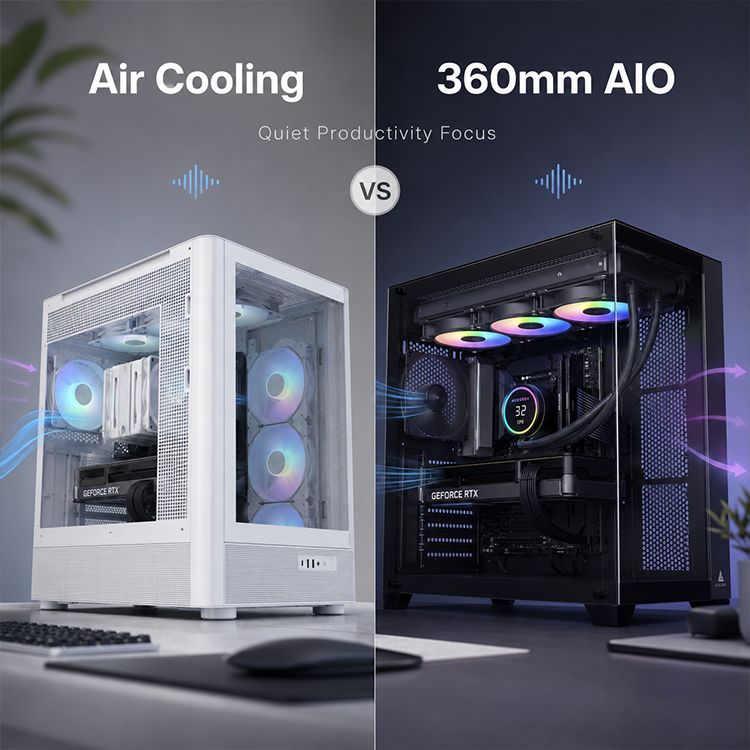
Pendingin AIO 360mm tidak otomatis lebih senyap daripada pendingin udara tower. Nah, saya sudah mengatakannya.
AIO (All-in-One) menambah kebisingan pompa, risiko penataan selang, masalah ruang radiator, dan kompleksitas instalasi. AIO bisa sangat bagus. Namun, AIO juga bisa menjadi masalah besar dalam rakitan PC produktivitas yang sebenarnya bisa berjalan sempurna dengan pendingin udara dual-tower berukuran besar.
Jika Anda menggunakan AIO yang dipasang di bagian atas, baca panduan jarak bebas radiator atas dari AceGeek. Casing yang "kompatibel 360mm" tidak menjamin jarak bebas yang bersih di sekitar RAM, heatsink VRM, kabel EPS, fitting pipa, atau rangka kipas. Susunan radiator yang umum adalah radiator 27mm ditambah kipas 25mm, atau 52mm sebelum kepala sekrup, bantalan karet, dan ruang ventilasi. Mengabaikan hal itu dapat membuat PC yang senyap tetapi secara fisik mengganggu selamanya.
Sistem Pendingin Senyap yang Benar-Benar Saya Percaya
Untuk sebagian besar PC produktivitas, pengaturan pilihan saya cukup sederhana: intake yang ramah mesh, dua atau tiga kipas intake depan atau bawah, satu exhaust belakang, satu exhaust atas-belakang jika suhu memungkinkan, pendingin udara besar atau AIO yang terpasang dengan benar, dan kurva kipas yang mengabaikan lonjakan suhu kecil.
Tidak glamor. Efektif.
Keputusan PendinginanTarget Produktivitas TenangApa yang Akan Saya LakukanApa yang Akan Saya HindariPerilaku daya CPU65W–125W berkelanjutan untuk sebagian besar PC kantor/kreatorTetapkan batas daya yang wajar dan uji beban kerja nyataTurbo tak terbatas pada casing yang sempitAliran udara casingTekanan positif ringanAsupan udara yang lebih banyak disaring daripada pembuanganTekanan negatif dengan celah samping yang berdebuKipas casing500–900 RPM selama kerja normalKipas 140mm jika didukung, kontrol PWMEnam kipas 120mm murah yang berisik bersamaanPendingin CPUSuhu stabil tanpa lonjakan RPMPendingin udara tower besar atau AIO 240/280/360mm yang bersihPendingin kecil pada CPU berdaya tinggiKurva kipasRespon lambat dan halusHisteresis, penundaan, peningkatan bertahapPeningkatan instan pada setiap lonjakan CPUPerencanaan radiatorMargin servis 5–10mmUkur RAM, kipas, radiator, jalur selangPercaya secara membabi buta pada “mendukung 360mm”Pengendalian debuJalur masuk yang bersihFilter pada saluran masuk, pembersihan berkalaKotak kaca tertutup dengan rapat penggemar
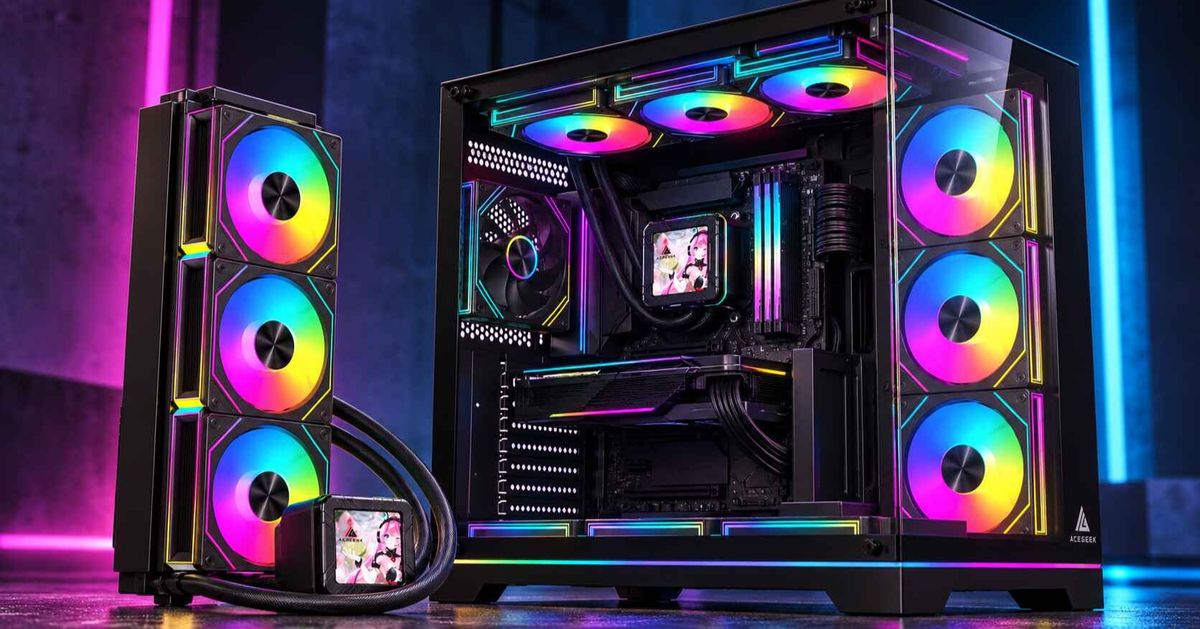
Jika Anda berencana menggunakan perangkat keras AceGeek, saya akan mengarahkan logika ke arah ini: sasis yang lebih besar dan berfokus pada aliran udara seperti LunarisFlow dengan ruang pendingin CPU 180mm dan dukungan AIO 420mm/360mm di bagian atas memberi Anda margin pendinginan yang lebih tenang daripada kotak pajangan yang sempit. Untuk tata letak panoramik, tata letak casing Mercury R425 Pro memiliki posisi kipas 120mm di bagian atas, samping, belakang, dan bawah, yang dapat bekerja dengan baik jika Anda menjaga peran pemasukan dan pembuangan udara tetap terkendali.
Kesalahan berbahaya adalah membeli casing dengan mengutamakan kualitas kaca terlebih dahulu dan aliran udara kemudian. Kaca bukanlah sesuatu yang jahat. Yang jahat adalah asupan udara yang buruk.
Optimasi Kurva Kipas: Perbedaan Antara Keheningan dan Keheningan Palsu
Optimalisasi kurva kipas adalah titik di mana rakitan yang bagus berubah menjadi rakitan yang matang.
Kurva kipas yang buruk mengejar setiap lonjakan suhu CPU. Buka Chrome: kecepatan kipas meningkat. Ekspor PDF: kecepatan kipas meningkat. Bergabung dengan panggilan video: kecepatan kipas meningkat. Windows Defender aktif: kecepatan kipas meningkat. Kipas tidak mendinginkan beban yang berkelanjutan; mereka panik karena gangguan sensor.
Untuk rakitan PC produktivitas yang senyap, saya menyukai kurva yang berperilaku kurang lebih seperti ini:
Kurva kipas CPU
Di bawah 50°C: jaga agar tetap rendah dan stabil.
Dari 50°C hingga 70°C: naikkan secara bertahap.
Di atas 75°C: berikan respons tegas.
Di atas 85°C: prioritaskan pendinginan daripada keheningan.
Angka pastinya bergantung pada CPU, pendingin, suhu lingkungan, dan beban kerja. Namun prinsipnya tetap sama: jangan menghukum pengguna karena lonjakan penggunaan CPU selama satu detik.
Kurva kipas casing
Kipas casing seharusnya tidak selalu mengikuti suhu CPU. Itu adalah salah satu kesalahan paling umum yang saya lihat dalam pendinginan PC yang senyap. Suhu CPU melonjak dengan cepat; suhu udara casing berubah perlahan. Ketika kipas casing mengikuti lonjakan suhu CPU, kipas akan berputar kencang tanpa alasan.
Gunakan sensor yang terpasang pada motherboard atau GPU jika motherboard Anda mendukungnya. Atau atur kipas casing ke kurva bertahap lambat yang hanya meningkat ketika suhu internal tetap tinggi.
Aliran udara yang mempertimbangkan GPU.
Komputer produktivitas mungkin masih memiliki GPU untuk monitor 4K, aplikasi Adobe, CAD, Blender, perangkat lunak AI, atau pekerjaan video ringan. GPU seringkali membuang panas langsung ke dalam casing. Jika GPU memanaskan casing, pendingin CPU akan terbebani. Kemudian kipas CPU akan berputar lebih kencang. Dan kemudian pengguna akan menyalahkan pendingin CPU.
Tersangka yang salah.
Ventilasi bawah, ventilasi samping, atau ventilasi depan yang bersih dapat mengurangi kebisingan lebih banyak daripada pendingin CPU premium. Bagaimana cara mendinginkan PC yang senyap? Berikan panas ke GPU terlebih dahulu, kemudian buang panas tersebut sebelum pendingin CPU harus menanganinya.
Pendingin Udara vs Pendingin All-in-One untuk PC Produktivitas yang Tenang
Saya tidak membenci pendinginan cairan. Saya membenci pendinginan cairan yang malas.
Untuk banyak PC produktivitas yang senyap, pendingin udara berkapasitas besar adalah pilihan yang lebih baik karena tidak memiliki pompa, lebih sedikit titik kegagalan, perawatan lebih sederhana, dan kemungkinan lebih rendah menghasilkan suara aneh. AIO (All-in-One) masuk akal jika CPU memiliki daya tinggi yang berkelanjutan, casing memiliki dukungan radiator yang sangat baik, atau perakit ingin memindahkan panas langsung ke jalur pembuangan atas atau samping.
Namun, berikut saran yang kurang populer: jangan membeli AIO 360mm hanya karena internet membuat Anda merasa kurang mampu dengan pendingin tower.
Pendingin udara yang dipilih dengan tepat pada CPU 65W hingga 125W dapat sangat efektif. Pendingin AIO 360mm yang dipasang dengan buruk di slot atas yang sempit dapat lebih berisik, lebih panas, lebih sulit diservis, dan lebih jelek daripada pendingin udara yang digantikannya.
Pertanyaan yang lebih tepat bukanlah "udara atau cairan?" Pertanyaan yang lebih tepat adalah: ke mana panas itu pergi setelah pendingin menerimanya?
Formula Pendinginan PC Senyap Tanpa Ribet Saya
Berikut strategi yang akan saya gunakan untuk sebagian besar komputer yang digunakan untuk pekerjaan kantor, pemrograman, penulisan, analisis, desain, dan pembuatan konten ringan:
Pilih CPU yang tidak membutuhkan tegangan yang sangat tinggi agar terasa cepat.
Gunakan wadah dengan area masuk udara yang sebenarnya, bukan celah dekoratif.
Pasang dua atau tiga kipas intake PWM berkualitas.
Gunakan satu knalpot belakang, ditambah knalpot belakang atas hanya jika itu membantu.
Pilih pendingin dengan kapasitas termal yang memadai, bukan hanya yang kompatibel.
Sesuaikan kurva kipas untuk beban yang stabil, bukan lonjakan sesaat.
Jaga agar saluran masuk udara GPU tetap bersih.
Tambahkan filter debu di tempat masuknya udara.
Uji dengan aplikasi sungguhan Anda, bukan hanya tolok ukur sintetis.
Suhu yang sedikit lebih tinggi dapat diterima jika sistem tetap stabil dan tidak berisik.
Poin terakhir itu penting. CPU pada suhu 72°C dengan suara kipas yang rendah dan stabil dapat menjadi mesin produktivitas yang lebih baik daripada CPU pada suhu 63°C dengan kipas yang terus berputar kencang. Angka tanpa konteks adalah cara yang digunakan untuk membenarkan rakitan yang buruk.
Pertanyaan yang Sering Diajukan (FAQ)
Apa strategi pendinginan terbaik untuk PC produktivitas yang senyap?
Strategi pendinginan terbaik untuk PC produktivitas yang senyap adalah rencana aliran udara terkontrol yang memasok udara masuk segar ke CPU dan GPU, menggunakan kipas berukuran besar dengan RPM rendah, memisahkan pemasukan dan pembuangan udara, serta menyesuaikan kurva kipas berdasarkan beban kerja kantor yang berkelanjutan, bukan lonjakan benchmark jangka pendek.
Dalam praktiknya, itu berarti memilih casing yang ramah aliran udara, menggunakan kipas PWM, menghindari daya turbo yang tidak perlu, dan menguji sistem dengan perangkat lunak yang benar-benar Anda gunakan. Rakitan yang senyap seharusnya terasa tenang selama pekerjaan normal, bukan hanya terlihat bagus dalam daftar komponen.
Apa yang dimaksud dengan pendinginan PC yang senyap?
Pendinginan PC yang senyap berarti mengurangi panas dan suara secara bersamaan dengan menurunkan konsumsi daya yang tidak perlu, meningkatkan aliran udara casing, memilih kipas PC dengan kebisingan rendah, dan mengatur optimasi kurva kipas sehingga sistem menghindari lonjakan RPM mendadak saat mengetik, menjelajah internet, menggunakan spreadsheet, melakukan panggilan video, dan pekerjaan kreatif ringan.
Tujuannya bukanlah keheningan mutlak dengan segala cara. Tujuannya adalah suara yang terkontrol, berfrekuensi rendah, dan dapat diprediksi yang tidak mengganggu Anda selama sesi kerja yang panjang.
Apakah PC produktivitas sebaiknya menggunakan tekanan positif atau negatif?
Komputer produktivitas biasanya sebaiknya menggunakan pengaturan aliran udara bertekanan positif ringan, artinya aliran udara masuk sedikit melebihi aliran udara keluar, karena hal itu membantu memasok udara yang lebih bersih ke komponen, mengurangi masuknya debu melalui celah yang tidak tersaring, dan memungkinkan kipas berputar lebih lambat daripada tata letak bertekanan negatif di bawah beban kerja kantor yang sama.
Tekanan positif bukanlah sihir. Sistem ini tetap membutuhkan asupan udara yang tersaring, jalur pembuangan udara yang jelas, dan casing yang tidak menghambat kinerja kipas di balik panel yang tebal.
Apa itu optimasi kurva kipas?
Optimasi kurva kipas adalah proses memetakan RPM kipas ke sensor suhu CPU, GPU, atau motherboard sehingga pendinginan merespons dengan lancar, menunggu lonjakan suhu yang tidak berbahaya, dan menjaga keluaran suara tetap stabil selama pekerjaan sebenarnya, alih-alih mengejar setiap lonjakan panas yang terjadi setiap detik.
Untuk PC produktivitas yang senyap, kurva harus naik perlahan di bawah suhu sedang dan bereaksi lebih keras hanya ketika panas bertahan lama. Pengaturan histeresis dan penundaan adalah teman Anda.
Apakah pendingin AIO 360mm lebih senyap daripada pendingin udara?
Pendingin AIO 360mm tidak otomatis lebih senyap daripada pendingin udara yang bagus karena kebisingan bergantung pada jarak bebas radiator, nada pompa, kualitas kipas, hambatan casing, daya beban kerja, dan pengaturan kurva kipas, bukan hanya ukuran radiator atau angka yang tercetak di kotak.
AIO (All-in-One) bisa sangat baik untuk CPU dengan daya tinggi yang digunakan secara terus menerus. Namun untuk banyak rakitan PC produktivitas, pendingin udara berukuran besar lebih sederhana, lebih senyap, lebih murah, dan lebih mudah perawatannya.
Bagaimana cara mendinginkan PC yang senyap tanpa menambahkan lebih banyak kipas?
Cara tercepat untuk mendinginkan PC yang senyap adalah dengan mengurangi panas sebelum meningkatkan kecepatan kipas: batasi perilaku peningkatan CPU yang ekstrem jika diperlukan, bersihkan jalur masuk udara, gunakan kipas PWM, sesuaikan kurva dengan histeresis, dan cegah GPU mendaur ulang udara panas yang dibuang CPU.
Menambah lebih banyak kipas sebaiknya menjadi langkah terakhir, bukan yang pertama. Aliran udara yang buruk meskipun sudah ditambah kipas tetaplah aliran udara yang buruk.
Kesimpulan: Bangun untuk Hari Kerja, Bukan untuk Tangkapan Layar Tolok Ukur
Komputer produktivitas yang tenang dimenangkan melalui detail-detail yang membosankan: jalur aliran udara, daya CPU, kualitas kipas, jarak bebas radiator, pengendalian debu, dan perilaku kurva kipas.
Jadi, inilah langkah selanjutnya: periksa rakitan komputer Anda saat ini atau yang direncanakan hari ini. Catat model CPU Anda, daya turbo maksimum, jenis pendingin, tata letak kipas casing, jarak bebas radiator, panjang GPU, jalur masuk udara, jalur keluar udara, dan kurva kipas saat ini. Kemudian, perbaiki kesalahan yang paling berisik terlebih dahulu.
Mulailah dengan aliran udara di dalam casing. Konfirmasikan kontrol PWM. Ukur jarak bebas. Sesuaikan kurva. Kemudian uji mesin selama hari kerja Anda yang sebenarnya.
Rakitlah PC yang nyaman untuk Anda gunakan selama delapan jam. Bukan PC yang hanya terlihat gagah di foto produk.