White PC Case Build Guide: Matching Parts and Cleaning Tips
White shows everything.
A white PC case exposes mismatched plastics, cream-colored cables, blue-white LEDs, dusty filters, fingerprints, cable gaps, and every component selected because it looked “close enough” on a product page rather than because it worked as part of a complete visual and thermal system.
So why do so many white PC builds still begin with the graphics card?
The case should come first. It establishes the dominant shade, available space, cooling layout, cable-routing options, and amount of hardware visible through the side panel. Everything else should be selected around that reference point.
That is the hard truth: an all-white gaming PC is not created by buying the maximum number of white parts. It is created by controlling contrast.
A White PC Build Is a System, Not a Shopping Theme
“White” is not one standardized color.
Powder-coated steel may appear neutral white. Injection-molded ABS can look warmer. An anodized aluminum panel may appear slightly gray. White braided cables can lean cream-colored, while RGB fans set to maximum white often produce a visible blue or purple cast.
The difference becomes more obvious under daylight, warm room lighting, or a tempered-glass panel.
This is partly why white components can cost more. ACEGEEK’s analysis of the industry’s so-called white PC component premium explains how coating coverage, contamination control, smaller production volumes, quality inspection, and inventory risk can raise manufacturing costs.
But paying more does not guarantee a better match.
I would rather use a controlled two-tone scheme—white chassis, white cooling hardware, black motherboard and GPU details—than force together five visibly different whites. Intentional contrast looks designed. Accidental contrast looks unfinished.
Pick One Dominant White
Use the PC case as the dominant reference because it occupies the largest visible area. Then choose one of three strategies:
True all-white: White case, motherboard, GPU, cooler, RAM, fans, cables, and accessories.
White with black structure: White case and cooling components with a black motherboard, GPU PCB, connectors, and small hardware.
White with one accent color: White base with controlled silver, wood, pastel, or RGB accents.
The second option is usually the smartest. Black connector housings, motherboard sockets, fan cables, screws, and PCB sections are difficult to eliminate completely. Treating them as deliberate contrast prevents a pointless search for impossible color uniformity.
Choose the White PC Case Before Matching the Parts
The best white PC case for gaming is not automatically the whitest case in the catalog.
Start with physical compatibility. Check motherboard format, graphics-card length, graphics-card thickness, CPU cooler height, radiator position, fan support, PSU length, storage mounts, front I/O, and cable space behind the motherboard tray.
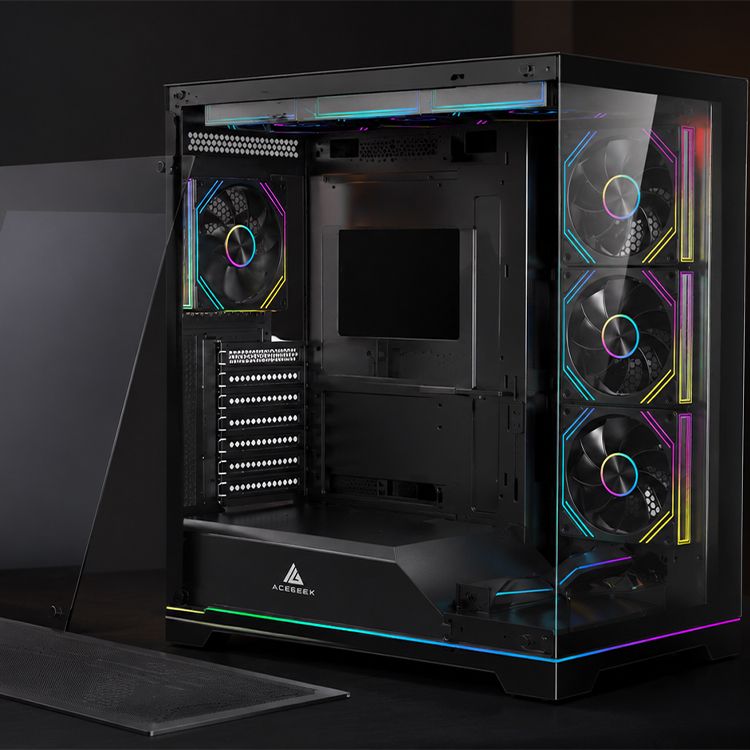
Use the ACEGEEK PC case collection to compare ATX, M-ATX, ITX, E-ATX, 240 mm AIO, and 360 mm AIO options before choosing by appearance alone.
For example, the white ACEGEEK Lucid back-connect case supports M-ATX and ITX motherboards, graphics cards up to 400 mm, CPU coolers up to 165 mm, and top-mounted 360 mm or 280 mm liquid cooling. Its back-connect layout also helps remove motherboard power and I/O cables from the main viewing chamber.
The white ACEGEEK Cruiser L460 Pro takes a larger approach. It supports E-ATX, ATX, M-ATX, and ITX motherboards, a 410 mm graphics card, a 165 mm CPU cooler, a top-mounted 360 mm radiator, and up to three 120 mm bottom fans.
Those are not decorative specifications. They decide whether your white PC build remains clean after the hardware is installed.
White PC Component Matching Checklist
ComponentWhat to MatchWhat to MeasureMy Hard RulePC caseFinish, panel color, interior coatingMotherboard, GPU, cooler and radiator supportChoose the case firstMotherboardPCB, heatsinks, rear I/O coverForm factor, socket, RAM type, headersSilver and black details are acceptableGraphics cardShroud, backplate, fan colorLength, thickness, connector clearanceLeave 20–30 mm beyond published fit where possibleCPU coolerPump cover, radiator, tubes, fan framesSocket, radiator thickness, RAM and VRM clearanceDo not buy by radiator length aloneRAMHeat spreader and RGB diffuserHeight and cooler overlapMatch the cooler before matching the paintFansFrame, blades, cable and LED toneSize, PWM headers, airflow directionUse one fan family where possiblePSU cablesSleeve shade and connector colorConnector type and bend spaceNever mix unapproved modular PSU cablesLightingWhite balance and diffuser qualityController, ARGB header and software supportUse one controller ecosystemCleaning accessFilters, panels and fan bracketsRemoval direction and desk clearanceBuild for the next cleaning session
Before checkout, run the full list through the manual process in ACEGEEK’s PC part compatibility guide. Automated compatibility tools catch obvious socket and form-factor errors, but they may not catch radiator overlap, cable pressure, bottom-fan interference, or a side panel pressing against a GPU power lead.
Compatible is not enough.
A component can technically fit and still make the system difficult to assemble, cool, clean, or upgrade.
How to Match White PC Components Without Building a Patchwork Machine
Match Materials Before Tiny Color Differences
A white aluminum panel and a white plastic fan frame will never reflect light identically. That is normal.
The more useful comparison is surface character:
Matte versus glossy
Fine texture versus smooth plastic
Opaque versus translucent
Bright neutral white versus warm white
Solid white versus silver-white metallic
Repeated textures make small color variations less noticeable. A matte white case, matte fan frames, and matte cable combs can look consistent even when their exact shades differ.
Mixing a glossy cream GPU, cold-white steel case, translucent blue-white fans, and silver RAM creates more visual conflict.
Do Not Let the White Motherboard Control the Entire Budget
A white or silver motherboard can complete the look, but it should still have the correct socket, chipset, BIOS support, VRM design, memory compatibility, storage layout, fan headers, USB headers, and rear I/O.
Buying the wrong motherboard because its heatsinks are white is backward.
I start with platform requirements. Then I compare finishes. A stable black motherboard with silver heatsinks is a better choice than a weak white board that limits the CPU, storage, or cooling system.
Treat the Graphics Card as a Visual Anchor
The graphics card is usually the largest visible component after the case. Its shroud and backplate therefore matter more than the color of an SSD hidden behind the motherboard tray.
Check:
GPU length
Slot thickness
Vertical-mount compatibility
Power-connector position
Cable bend clearance
Bottom-intake clearance
Radiator interference
Support-bracket color
Modern high-end hardware produces serious heat. Intel lists the Core i9-14900K at 125 W Processor Base Power and 253 W Maximum Turbo Power on its official processor specification page. NVIDIA launched the GeForce RTX 5090 with 32 GB of GDDR7 memory and a starting price of $1,999 on its official RTX 5090 page.
Hardware at that level should not be squeezed into a restricted glass box merely because the box photographs well.
Use One Fan and Lighting Family
“White RGB” is one of the least consistent colors in PC hardware.
Different LED packages and diffusers can turn the same RGB value into blue-white, purple-white, green-white, or warm white. Mixing three fan brands, a separate AIO pump, RGB RAM, and an independent case strip often produces five different whites.
Use one fan family wherever possible. Connect the fans, pump lighting, and strips to a common controller or synchronized motherboard software. Then reduce brightness.
Maximum brightness usually makes LED color mismatch more obvious and creates harsh reflections on white panels. A lower intensity gives the build more depth and makes slightly different diffusers easier to tolerate.
White PC Cable Management: Hide the Black You Cannot Avoid
Cable management is not just about airflow. In a white PC case, it controls the visual hierarchy.
The exposed 24-pin motherboard cable, GPU power cable, front-panel leads, fan wires, and AIO tubes can either frame the hardware or break the entire design.
Start behind the motherboard tray:
Route the EPS CPU cable before installing a top radiator.
Separate fan, ARGB, SATA, front-I/O, and main power bundles.
Use reusable hook-and-loop straps for large groups.
Use small cable ties only for routes unlikely to change.
Keep cable joints and controller plugs away from the side-panel edge.
Do not stack SATA connectors directly behind a flat steel panel.
Test-close the cable-side panel before installing the graphics card.
White extension cables can improve the visible side, but they add connectors and bulk. Use extensions only where they can be hidden cleanly.
And never assume modular PSU cables are interchangeable. The component-side connector may look identical while the PSU-side pinout differs by manufacturer, platform, or model. Use cables supplied or explicitly approved for the exact power supply.
No aesthetic is worth damaged hardware.
Back-connect cases can reduce visible wiring further by moving motherboard power, USB, fan, and front-panel connectors behind the tray. But the motherboard and case must support the same rear-connector ecosystem. “Back-connect compatible” is a physical standard question, not a styling phrase.
Airflow Comes Before the All-White Photograph
A clean-looking PC still has to move heat.
A 2015 Lawrence Berkeley National Laboratory study found that gaming computers represented about 2.5% of the global installed PC base at the time but accounted for roughly 20% of PC energy use, with a typical gaming computer estimated at approximately 1,400 kWh per year. Those numbers are historical rather than a measurement of every 2026 system, but the Berkeley Lab gaming-computer study makes one point that remains valid: high-performance systems concentrate power and heat.
Color does nothing to change that physics.
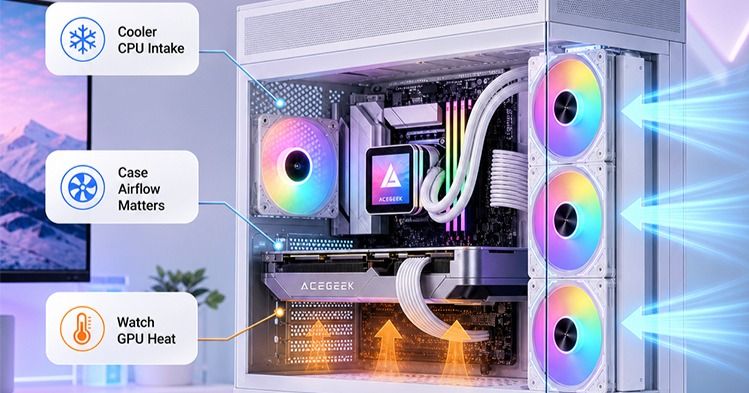
Use ACEGEEK’s high-airflow PC build guide to evaluate intake restriction, fan placement, cable paths, filters, and GPU access to cool air.
For a conventional tower, a sensible starting layout is:
Front, side, or bottom fans as intake
Rear fan as exhaust
Top fans or top radiator as exhaust
Slightly more filtered intake than exhaust
A direct cool-air route toward the GPU
No loose cable touching a fan blade
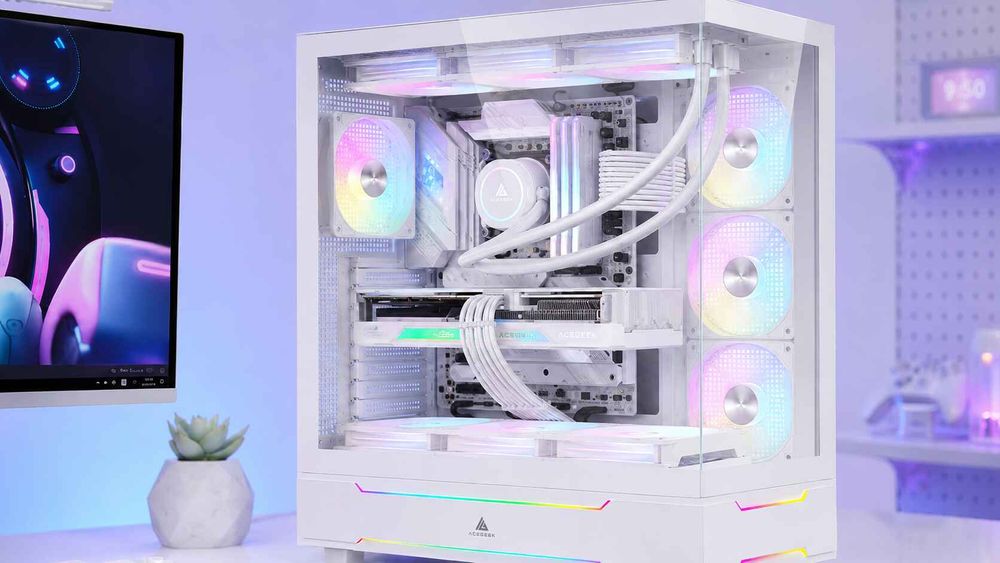
A panoramic white PC case may use side and bottom intake instead of front intake. That can work well, but the GPU must still receive fresh air and the top exhaust must remove heat rather than recirculate it through the visible chamber.
More fans are not automatically better. Eight poorly controlled fans behind restricted panels can be louder and less effective than five properly placed PWM fans.
How to Clean a White PC Case Without Ruining the Finish
White PC cases do not necessarily collect more dirt than black cases. They reveal it sooner.
That can be useful. Visible dust encourages maintenance before filters and heatsinks become heavily blocked.
Intel recommends opening the case and carefully removing dust every few months in its PC cooling and maintenance guidance. The correct schedule still depends on the room, floor type, pets, smoking, construction dust, fan pressure, filter design, and whether the computer sits on the floor.
A Practical Cleaning Schedule
Every two to four weeks
Inspect front, side, bottom, and PSU filters.
Wipe the exterior with a clean microfiber cloth.
Check the white cable sleeves for visible dust.
Look for blocked intake areas.
Every two to three months
Shut down and unplug the PC.
Remove and clean washable filters.
Blow dust out of fans, radiators, heatsinks, and vents.
Inspect the PSU intake without opening the PSU enclosure.
Clean the glass and exterior panels separately.
Every six to twelve months
Perform a deeper internal inspection.
Check fan bearings and noise.
Inspect cable ties and connectors.
Remove stubborn radiator buildup.
Review CPU and GPU temperatures against earlier readings.
A clean room may require less work. A carpeted room with two pets may require far more.
Clean the Exterior Conservatively
Use a dry or very lightly dampened microfiber cloth for painted exterior panels. Apply liquid to the cloth, not directly to the case.
Do not assume that 70% isopropyl alcohol—chemical formula C₃H₈O—is safe for every powder-coated, printed, acrylic, rubberized, or adhesive-backed surface. It can be useful on compatible bare glass or metal, but manufacturer instructions should override generic cleaning advice.
Avoid abrasive pads, melamine foam, acetone, ammonia-heavy cleaners, bleach, and aggressive household degreasers. These can dull the finish, damage printing, soften plastics, or leave a visibly different patch on white paint.
Test any cleaner on a hidden area first.
Use Compressed Air Without Abusing the Hardware
Move the computer to a ventilated area. Power it down, switch off the PSU, unplug the power cable, and hold fan blades in place while cleaning so they do not free-spin at excessive speed.
Use short, controlled bursts. Keep canned air upright to reduce the chance of propellant discharge.
A workshop compressor is not a harmless upgrade. The U.S. Occupational Safety and Health Administration states that compressed air used for workplace cleaning must generally be reduced to less than 30 psi—about 204 kPa—and used with appropriate guarding and personal protection under 29 CFR 1910.242(b).
That rule is written for occupational safety rather than specifically for home PC cleaning, but it exposes the bad assumption behind blasting electronics with an unrestricted industrial air gun. High pressure can launch debris, damage delicate parts, overspin fans, and drive contamination deeper into connectors.
Gentle wins here.
Make Maintenance Access Part of the Original Build
A white PC remains clean only when cleaning is easy enough to perform.
Removable filters, hinged glass, captive hardware, detachable fan brackets, and accessible cable panels reduce the temptation to postpone maintenance. ACEGEEK’s guide to quick-release PC case panels for building and cleaning explains why access matters throughout the system’s life, not only during the first assembly.
Before buying, ask:
Can the front filter be removed without disconnecting cables?
Can the bottom filter slide out with the case under a desk?
Can the glass panel be supported safely with one hand?
Can the radiator be cleaned without removing the motherboard?
Can the cable panel close without crushing the main bundle?
Can I reach the fan hub after the GPU is installed?
A case that takes 20 minutes to open will not be cleaned as often as one that takes two minutes.
A Practical White Gaming PC Build Formula
For most builders, this formula creates a more coherent and serviceable system:
Visual Base
Matte white case
White fan frames
White CPU cooler or AIO
White cable extensions
Black or silver motherboard details
One restrained RGB color
Compatibility Margin
At least 20–30 mm of spare GPU length after radiator and fan installation
At least 3–5 mm of spare CPU air-cooler height
Enough width for the GPU power connector and cable bend
Accessible EPS connector above the motherboard
Separate headers or a properly rated controller for PWM and ARGB devices
Cooling Layout
Filtered lower or side intake for the graphics card
Rear and top exhaust
Consistent fan models
Temperature-based PWM curves
No decorative panel blocking the primary intake
Maintenance Design
Removable filters
Quick-release or captive side-panel hardware
Washable filter media where approved
Cable bundles that do not block panel removal
Enough desk clearance to open the case
That is how to build a white gaming PC that still looks intentional after six months.
Not just on launch day.
FAQs
What is the best white PC case for gaming?
The best white PC case for gaming is a well-ventilated chassis that matches the motherboard format, graphics-card dimensions, CPU cooler height, radiator position, PSU length, cable-routing requirements, and planned fan layout while providing removable dust filters and enough access for routine maintenance without dismantling the entire system.
For high-power hardware, prioritize direct GPU intake, strong top or rear exhaust, and generous cable-bend clearance. Tempered glass and panoramic visibility are useful only after the thermal and compatibility requirements have been satisfied.
How do I match white PC components?
To match white PC components, select the case as the dominant color reference, compare matte or glossy surface finishes, use one fan and lighting family, control visible cable colors, and treat unavoidable black connectors or PCB areas as intentional contrast instead of forcing together multiple whites that look inconsistent under normal room lighting.
Product photographs are not reliable color-calibration tools. Compare user build photos, manufacturer galleries, and videos shot under neutral lighting before purchasing expensive visible components.
How often should I clean a white PC case?
A white PC case should normally have its filters inspected every two to four weeks and receive a more complete internal cleaning every two to three months, although homes with pets, carpets, smoke, open windows, construction dust, or floor-level computer placement may require substantially more frequent filter and radiator maintenance.
Do not wait for the case to look dirty. Track temperature, fan noise, filter loading, and visible buildup around the GPU and radiator.
Do white PC cases turn yellow?
White PC cases can develop yellowing or uneven discoloration when plastics, clear coats, adhesives, or painted surfaces are repeatedly exposed to ultraviolet light, cigarette smoke, heat, unsuitable chemicals, airborne grease, and inconsistent cleaning, although high-quality powder-coated steel usually behaves differently from lower-grade white plastic components.
Keep the system away from strong direct sunlight and smoke. Use mild manufacturer-approved cleaning methods rather than aggressive solvents or abrasive whitening products.
Is an all-white gaming PC more expensive?
An all-white gaming PC is often more expensive because white versions may be produced in lower volumes, require additional coating control, use specialized cable sleeves or molded plastics, and offer fewer competing models, while buyers may also pay extra to match the motherboard, graphics card, cooler, memory, fans, and power cables.
The cheapest solution is usually a controlled white-and-black build. It preserves the white appearance without forcing every hidden or structurally important component into a premium color variant.
Does white PC cable management improve airflow?
White PC cable management improves airflow only when cables are physically removed from fan inlets, GPU intake zones, radiator surfaces, and narrow exhaust routes; matching sleeve colors alone provide no thermal benefit, although a well-planned cable layout also makes inspection, panel removal, troubleshooting, upgrades, and filter cleaning easier throughout the system’s service life.
Focus first on safe routing, connector strain, panel clearance, and service access. Visual symmetry should come after electrical and mechanical requirements.
Build the White PC You Can Maintain
Start with the enclosure, not the accessories.
Choose a white PC case that fits the real motherboard, GPU, cooler, radiator, PSU, fans, and cable paths you intend to install. Create a compatibility worksheet. Decide which white finish will dominate. Leave enough thermal and mechanical margin to avoid turning the final ten millimeters into an expensive problem.
Then design the system for cleaning.
Explore the ACEGEEK PC case range, compare white ATX, M-ATX, ITX, panoramic, airflow, and back-connect designs, and select a chassis that will still look clean, run cool, and remain easy to service long after the first build photograph is taken.