How Much Clearance Does a PC Need Around Its Vents?
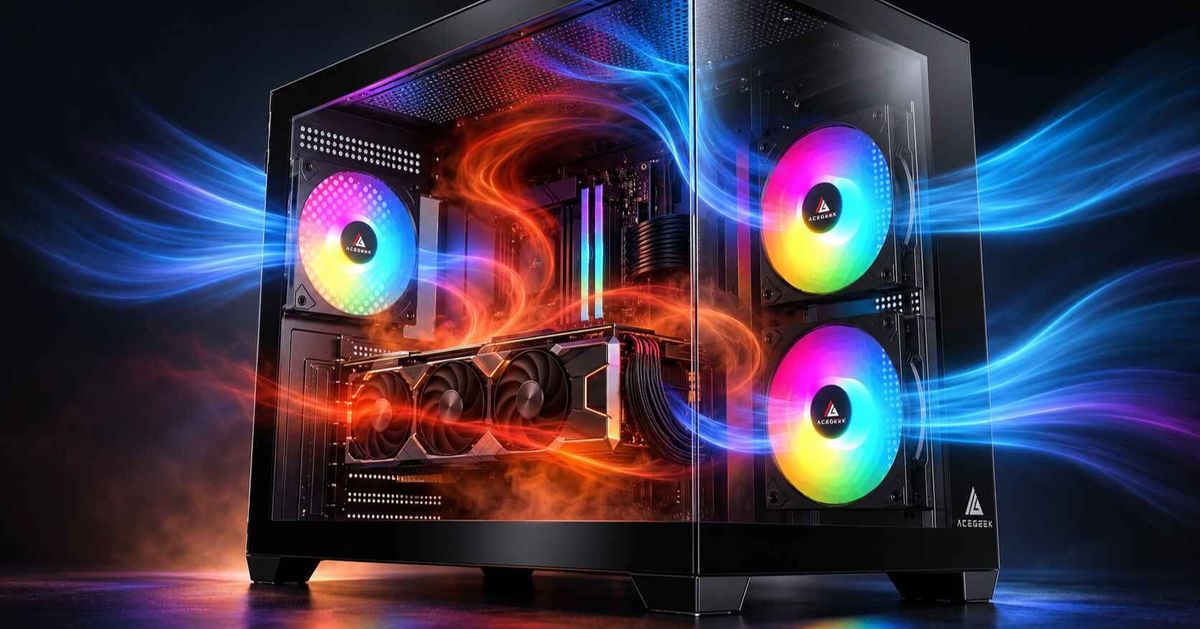
A gaming PC can have a powerful CPU cooler, multiple case fans, and a well-ventilated chassis but still run hotter than expected.
Sometimes, the problem is not inside the computer.
It is where the computer is placed.
A rear exhaust fan positioned too close to a wall may have difficulty dispersing heated air. A top-mounted radiator beneath a low shelf may release heat into a confined space. Bottom intake fans can also lose airflow when the case sits on thick carpet.
So, how much clearance does a PC need around its vents?
For many desktop PCs, approximately 4 inches (10 cm) around active ventilation openings is a useful planning starting point. However, the exact requirement depends on the computer's design, ventilation layout, power consumption, and surrounding furniture.
Some systems can operate with less space, while others benefit from significantly more open room around their exhausts.
This guide explains how to position your PC for better airflow, how different vents affect clearance requirements, and how to determine whether your current placement is restricting cooling.
How Much Space Should You Leave Around PC Vents?
There is no universal ventilation clearance requirement for every desktop computer.
Manufacturers specify different distances based on their equipment's thermal design.
For example, Dell's desktop care guidance recommends at least 10.2 cm (4 inches) of clearance around vented sides.
Meanwhile, Lenovo's ThinkCentre M710q user guide states that approximately 51mm (2 inches) of unobstructed space is usually sufficient for that system.
Sources: Dell Desktop Care and Ventilation Guidelines and Lenovo ThinkCentre M710q User Guide.
These recommendations illustrate why ventilation requirements cannot be reduced to one fixed number.
A compact office PC and a gaming tower with a powerful graphics card can generate very different amounts of heat.
Their ventilation layouts may also be completely different.
Practical PC Vent Clearance Guide
For a typical desktop gaming PC, the following distances can help when planning a suitable location.
Vent LocationPractical Starting PointMain ConsiderationFront intakeAround 10cm of open spaceUnrestricted access to room airSide intakeAround 10cm of open spaceAvoid blocking side ventilationRear exhaustAround 10cm, with more space if neededHeated air must escape freelyTop exhaustConsider 10–15cm beneath overhead furniturePrevent heat accumulation under shelvesBottom intakePreserve the manufacturer's intended foot clearanceAvoid carpet and blocked filtersSolid, unvented panelNo specific airflow gap neededPreserve maintenance and panel accessEnclosed cabinetNo single distance guarantees adequate ventilationThe cabinet needs effective intake and exhaust
These distances are general planning suggestions, not universal manufacturer requirements or guaranteed cooling-performance thresholds. Follow your computer or case manufacturer's instructions when they specify a particular clearance.
The distance should be measured from the external ventilation opening to the nearest obstruction.
That obstruction could be a wall, desk panel, cabinet door, curtain, or another electronic device.
However, the available escape path matters just as much as the measured gap.
A rear exhaust with 10cm of space behind it may still operate poorly if that space is enclosed on several sides and cannot release warm air into the room.
Why Does Vent Clearance Affect PC Cooling?
PC cooling depends on moving heat away from internal components.
CPU coolers and graphics card heatsinks transfer heat into surrounding air.
Case fans then help replace that warm air with cooler outside air.
For effective cooling, two things must happen:
Fresh room air must be able to reach the computer's intake openings.
Heated air must leave the chassis without repeatedly returning to the intake.
External obstructions can interfere with either process.
Restricted Intake Airflow
When a ventilation opening is positioned too close to furniture or another solid surface, incoming airflow may become restricted.
The intake fans must work against the resistance created by the narrow opening.
Depending on the fan and case design, this can reduce the amount of air entering the computer.
The GPU and CPU cooler may then receive warmer or less abundant air.
Under demanding workloads, internal temperatures and fan speeds may increase.
Hot-Air Recirculation
Exhaust airflow presents a different problem.
If a rear exhaust releases warm air into a confined space, that air may accumulate instead of dispersing into the room.
Some of it may eventually return to the computer through nearby intake openings.
This is known as hot-air recirculation.
The cooling system becomes less effective when its intake air is already warmer than the surrounding room.
A case with excellent internal airflow can still experience this problem when placed inside poorly ventilated furniture.
Why Fan Speed Cannot Solve Every Restriction
Increasing fan speed may improve airflow, but it cannot fully compensate for a severely obstructed ventilation path.
For example, several intake fans behind a nearly blocked panel may move less useful air than fewer fans supplied by a relatively open intake.
The amount of air entering a computer depends on fan performance and the resistance of the complete airflow path.
For more information about how ventilation geometry affects cooling, read our guide to how front panel design affects PC case cooling.
How Far Should a PC Be From a Wall?
A wall behind a PC can restrict the space available for exhaust airflow and cable routing.
For a conventional gaming tower with rear exhaust ventilation, approximately 10cm of clearance is a reasonable starting point.
More space may be beneficial when:
The computer generates substantial sustained heat.
The rear exhaust faces a recessed area.
Furniture surrounds the back of the chassis.
Other equipment releases warm air into the same space.
Power and display cables obstruct the exhaust.
The system becomes noticeably hotter in its current position.
What If the PC Has a Solid Side Panel?
A completely solid, unvented side panel does not require the same airflow clearance as an active intake or exhaust opening.
However, you should still leave sufficient room to remove or open the panel safely.
Also check the entire side of the chassis before assuming it has no ventilation.
Some cases use narrow perforations or side-mounted intake slots that may not be obvious from a distance.
Those openings must remain unobstructed.
Why a Larger Gap Is Not Always Better
Once an exhaust opening can discharge air effectively, moving the computer farther from the wall may provide little additional cooling benefit.
For example, changing from a severely restricted gap to an open ventilation path can improve cooling.
However, increasing an already adequate gap may produce no meaningful temperature difference.
The objective is not to maximize the distance from every wall.
It is to ensure that air can enter and leave the computer without unnecessary restriction.
Is It Okay to Put a Gaming PC Under a Desk?
Yes. A gaming PC can operate effectively under a desk when the surrounding space provides adequate ventilation.
The important distinction is between an open desk arrangement and an enclosed compartment.
Open Desk Placement
A PC positioned beneath an open desk frame may have sufficient airflow if its intake and exhaust openings remain unobstructed.
Check whether the desk legs, side panels, or other furniture block active vents.
Also make sure the computer is not positioned where feet or chair wheels can strike the chassis or cables.
Enclosed Desk Compartments
A desk compartment with solid sides, a door, and a closed rear panel can be more problematic.
The computer releases heat into the compartment, but that heat may have no effective way to escape.
As the surrounding air warms, the PC begins drawing in air that is hotter than the room.
This can increase CPU and GPU temperatures even when all internal cooling fans are functioning correctly.
How to Improve Ventilation Inside a Desk Compartment
Start by checking how air moves through the furniture.
A suitable arrangement should allow cooler room air to enter and heated air to leave.
Depending on the design, this may require:
A large open front or ventilated cabinet door.
Adequate rear ventilation.
Space around the computer's intake openings.
A clear exhaust path outside the furniture.
Additional cabinet ventilation when passive openings are insufficient.
Simply leaving a small gap around the computer may not solve the problem if the compartment itself traps heat.
For high-power systems, placing the computer in a more open location may be the simplest improvement.
How Much Space Does a Top-Mounted AIO Radiator Need?
A top-mounted AIO liquid cooler commonly uses radiator fans to exhaust heated air through the top of the chassis.
When the computer is positioned beneath a shelf, that exhaust air must escape through the space between the case and the overhead surface.
If the gap is narrow and enclosed, warm air may accumulate beneath the shelf.
This can reduce the effectiveness of the surrounding ventilation.
Practical Top Exhaust Clearance
For a PC beneath overhead furniture, approximately 10–15cm of open space above the exhaust is a reasonable initial planning range.
However, this is not a universal AIO requirement.
The available sideways and rearward airflow paths also matter.
For example, a relatively modest overhead gap may work adequately if the surrounding area is open.
A larger gap may still be insufficient if solid panels trap the heated air.
Does Radiator Direction Change the Problem?
Yes.
A top-mounted exhaust radiator moves heated air out of the case.
A front or side intake radiator typically draws outside air through the radiator and releases warmer air into the main compartment.
These arrangements change where heat enters and leaves the system.
However, both require an unobstructed external airflow path.
For a detailed explanation, read our guide to radiator intake vs exhaust and CPU/GPU temperature balance.
The important principle is that liquid cooling does not eliminate the need for ventilation.
A radiator still relies on moving air to release heat.
Can You Place a PC With Bottom Intake Fans on Carpet?
Bottom intake ventilation requires particular attention because it draws air through openings underneath the chassis.
Some gaming cases use bottom-mounted fans to supply outside air directly toward the graphics card.
Other systems position the power supply's intake fan beneath the case.
Both arrangements depend on sufficient clearance between the ventilation opening and the supporting surface.
Why Thick Carpet Can Restrict Airflow
A thick carpet can compress beneath a heavy desktop case.
As the case feet sink into the material, the gap between the bottom ventilation openings and the surface may become smaller.
In some situations, carpet fibers can partially obstruct the intake filter.
This may restrict airflow and increase dust accumulation.
What Surface Is Best?
A hard, stable, level surface is generally preferable for a PC with bottom ventilation.
Examples include:
A sturdy desk.
A solid wooden platform.
A stable metal PC stand.
A rigid stand designed to support the computer.
The platform should fully support the case and preserve its intended ventilation clearance.
Do not balance a heavy desktop tower on a narrow or unstable object simply to increase the distance from the floor.
Should You Raise the PC Higher?
Not always.
Many PC cases already use feet designed to provide ventilation clearance beneath the chassis.
If the case rests on a suitable hard surface and the bottom filters remain unobstructed, additional elevation may provide limited benefit.
If the computer has unusually low intake clearance or the supporting surface interferes with ventilation, a compatible rigid stand may be helpful.
Always follow the case manufacturer's support and placement recommendations.
Do Panoramic PC Cases Need More Space Around Their Side Panels?
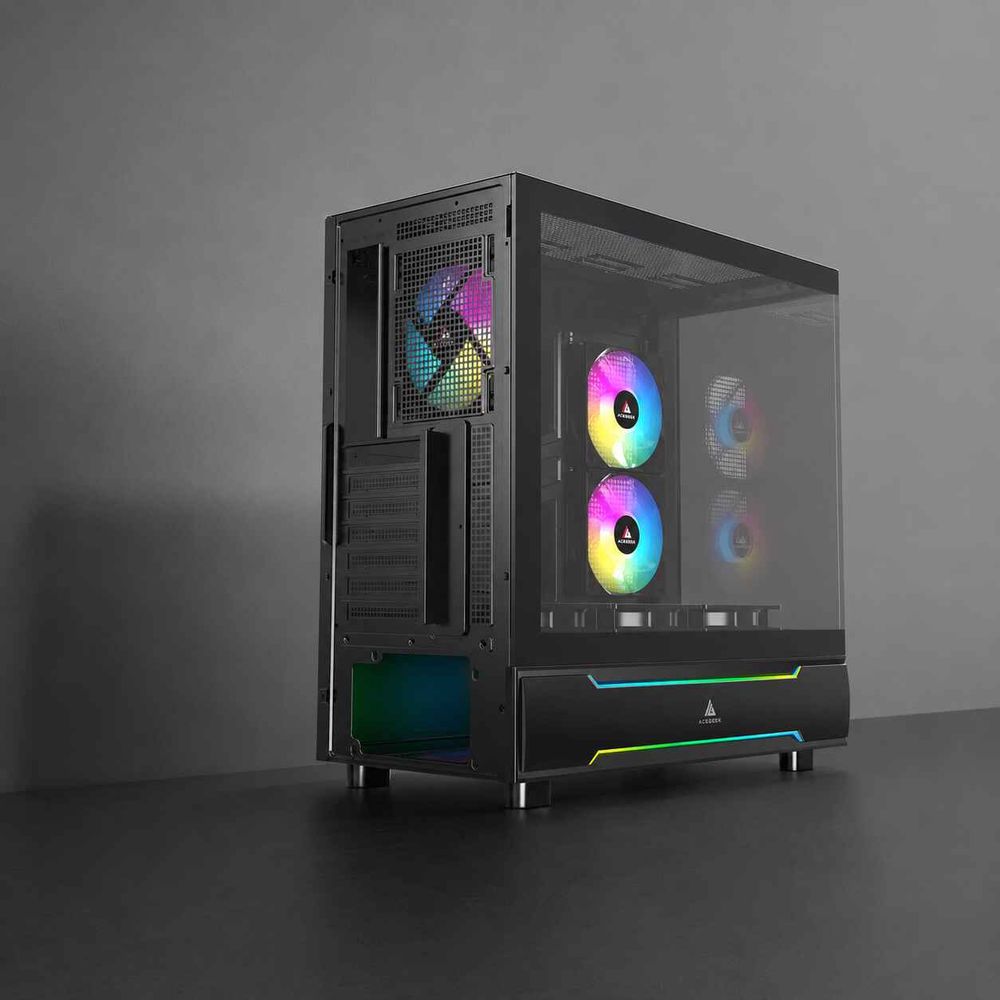
Panoramic PC cases often use glass front panels and rely on side or bottom ventilation to supply fresh air.
This changes which external openings need the most attention.
For example, a traditional mesh-front tower may receive most of its intake air through the front.
A panoramic case may instead depend on a row of side intake fans positioned beside the motherboard.
If that side intake faces a wall or furniture panel, the computer may have difficulty obtaining enough room air.
Check the Actual Intake Openings
Do not assume that every glass surface requires additional airflow clearance.
Solid tempered glass does not function as an intake vent.
Instead, identify the actual openings through which the case fans draw air.
These may be:
Perforated side panels.
Mesh sections beside the glass.
Bottom ventilation grilles.
Rear-side intake openings.
Openings in a secondary chamber.
Position the computer so these areas face an unobstructed air supply.
Why Side Intake Performance Varies
The effectiveness of side intake depends on more than the distance to furniture.
Dust filters, decorative panels, fan placement, and internal component positioning can also create resistance.
A case with generous side clearance may still perform poorly if its intake opening is restrictive.
For a practical explanation of these configurations, see our guide to setting up side intake fans in a panoramic PC case.
How to Tell Whether Your PC Placement Is Restricting Cooling
You do not need to rely entirely on general clearance recommendations.
A simple comparison can help determine whether the current position is limiting airflow.
The goal is to observe how the computer behaves under a repeatable workload before and after moving it into a more open environment.
Step 1: Record Your Current PC Position
Before making changes, note:
Distance from active vents to nearby walls.
Space above the case.
Desk or cabinet enclosure.
Bottom ventilation clearance.
Nearby heat-producing equipment.
Room temperature.
Keep the computer fully assembled with its normal side panels and dust filters installed.
Step 2: Establish a Thermal Baseline
Run a repeatable gaming, rendering, or other sustained workload.
Record the relevant measurements.
MeasurementWhy It MattersCPU package temperatureTracks processor coolingCPU package powerConfirms comparable CPU workloadsGPU core temperatureTracks graphics card coolingGPU hotspot temperatureProvides additional GPU thermal informationGPU power consumptionConfirms comparable graphics loadCPU and GPU fan RPMShows cooling system responseCase fan RPMConfirms airflow settingsRoom temperatureProvides environmental contextThermal throttling statusIdentifies temperature-related performance limits
Allow the workload enough time to establish a relatively stable thermal condition.
Brief temperature spikes are less useful than sustained readings for evaluating case placement.
Step 3: Move the PC Into a More Open Position
Shut down the computer and reposition it safely.
Use a stable surface with clear access to active intake and exhaust openings.
For this comparison, try to provide at least the ventilation clearance recommended by the equipment manufacturer.
Avoid changing fan curves, removing dust filters, or altering other cooling settings.
Otherwise, it becomes harder to isolate the effect of placement.
Step 4: Repeat the Same Workload
Run the same test with comparable:
Room temperature.
CPU and GPU power settings.
Fan-control profiles.
Workload duration.
Background applications.
Record the same measurements as before.
Where possible, repeat the comparison to account for normal variation.
Step 5: Compare Sustained Temperatures and Fan Speeds
A cooling improvement may appear in several ways.
Lower temperatures at similar power and fan speed
This suggests the new location may be improving the cooling conditions.
Similar temperatures with lower fan speeds
Automatic fan control may be reducing fan RPM because the components receive cooler air.
This can be an acoustic improvement even if the displayed temperatures remain similar.
Reduced thermal throttling
If the computer previously experienced sustained thermal limitations and now maintains performance more consistently, the improved placement may be meaningful.
Little or no consistent change
If repeated testing shows minimal differences, the original position may not have been a significant cooling restriction.
Do not treat a particular temperature change, such as 3°C, as a universal pass-or-fail threshold.
The result should be interpreted alongside workload variation, measurement accuracy, component power consumption, and fan behavior.
What If Your PC Still Runs Hot With Plenty of Clearance?
External ventilation space is only one part of PC cooling.
If repositioning the case produces little improvement, investigate other possible restrictions.
Check Dust Filters
Dust buildup can reduce airflow through intake openings.
Clean filters according to the case manufacturer's instructions.
Be sure they are completely dry before reinstalling them.
Verify Fan Direction
Make sure the intended intake and exhaust fans are installed correctly.
Use airflow markings or the manufacturer's documentation rather than relying only on fan appearance.
Inspect Intake Panel Restrictions
A PC can have plenty of surrounding space while still struggling to draw air through a restrictive front or side panel.
Check the ventilation geometry and look for obstructions inside the chassis.
Check CPU and GPU Cooling Hardware
Unusually high temperatures can also result from poor CPU cooler mounting, malfunctioning fans, incorrect pump operation, or unsuitable fan-control settings.
Compare component temperatures with power consumption and the manufacturer's operating specifications.
Avoid Buying Fans Before Identifying the Problem
Adding more case fans may help when existing airflow is insufficient.
However, extra fans cannot completely compensate for blocked ventilation openings or poor cooling hardware.
Before spending money, review our guide to building a high-airflow PC without overspending.
The most useful cooling improvement is the one that addresses the actual restriction.
PC Placement and Ventilation Checklist
Before choosing a permanent location for your desktop, verify the following.
CheckRecommended ActionRear exhaustLeave an open path for warm air to escapeFront intakeAvoid placing furniture directly against ventilation openingsSide intakeKeep active side vents unobstructedTop radiatorCheck overhead clearance and heat escapeBottom ventilationUse a stable surface that preserves airflowDesk compartmentProvide effective intake and exhaust openingsDust filtersKeep clean and accessiblePower and display cablesRoute without blocking exhaust or creating strainNearby heat sourcesAvoid directing their warm exhaust into the PCMaintenance accessAllow room to remove panels and filters
A suitable location should support the case safely while providing effective ventilation during sustained workloads.
Frequently Asked Questions
1. Why Does My PC Run Hotter Under My Desk?
A computer may run hotter beneath a desk if the furniture restricts intake airflow or traps heated exhaust.
This is especially likely when the desk has solid side panels, a closed rear section, or a shelf positioned close to the top exhaust.
The PC may repeatedly draw in air warmed by its own cooling system.
To investigate, compare temperatures and fan speeds under the same workload with the computer in an open location.
If cooling improves consistently, the original desk arrangement may need better ventilation.
2. Is It Safe to Place a PC With Bottom Intake on Carpet?
Thick carpet is generally not a good supporting surface for a PC with bottom ventilation.
The carpet can reduce the gap beneath the case and may obstruct intake filters or the power supply's cooling airflow.
A stable, rigid platform can help preserve the intended clearance.
However, the platform must fully support the case and should not introduce tipping or instability.
Check the case manufacturer's recommended placement conditions.
3. Does a Top-Mounted AIO Need Extra Space Above the Case?
A top-mounted exhaust radiator needs an unobstructed path for heated air to leave the chassis.
If the computer sits beneath a shelf, the available overhead space and the ability of air to escape sideways both matter.
Approximately 10–15cm is a useful starting range when planning overhead clearance beneath furniture, but it is not a universal AIO requirement.
Follow the manufacturer's recommendations and verify cooling performance in the actual installation location.
4. Can I Keep My Gaming PC Inside a Cabinet With the Door Open?
Possibly, but opening the front door does not automatically provide adequate ventilation.
The cabinet also needs a route for heated air to leave.
If the rear and upper sections remain enclosed, warm exhaust may accumulate inside the furniture and return to the PC intake.
For a high-power gaming system, an open rear section or properly designed cabinet ventilation may be important.
Monitor CPU and GPU temperatures during sustained workloads to confirm that the enclosure is suitable.
5. Does a Solid Glass Side Panel Need Airflow Clearance?
A completely solid, unvented glass panel does not require a dedicated air gap for intake or exhaust.
However, you should leave enough room for safe panel removal and access to internal components.
Some cases position ventilation slots close to glass edges or behind adjacent panels.
These openings still require unobstructed access to room air.
Identify the actual ventilation locations before positioning the case close to furniture.
6. How Can I Tell Whether Moving My PC Improved Cooling?
Compare the system under the same repeatable workload before and after repositioning it.
Monitor CPU and GPU temperatures, power consumption, fan speeds, room temperature, and thermal-throttling status.
An improvement may appear as lower sustained temperatures, reduced fan speeds at comparable temperatures, or more consistent performance.
Repeat the test if the differences are small or conditions vary.
The most useful result is a consistent improvement under comparable operating conditions, not a single temperature reading.
Give Your PC Enough Room to Breathe
Proper PC placement is a simple but important part of cooling performance.
A well-designed case still needs access to fresh room air and a clear path for heated exhaust.
For many desktop systems, approximately 10cm of space around active vents provides a useful planning starting point, but the correct requirement depends on the specific hardware and manufacturer.
Pay particular attention to rear exhaust ventilation, top-mounted radiators beneath shelves, and bottom intake openings near carpet.
If your computer operates inside furniture, make sure the surrounding compartment can exchange air with the room.
Before purchasing more cooling hardware, try improving the placement and checking for blocked ventilation.
Then use repeatable temperature and fan-speed measurements to determine whether the change helps.
Good PC cooling does not stop at the case panel. It depends on giving fresh air a clear way in and heated air an effective way out.