How to Build a White PC: Match Components and Keep It Clean
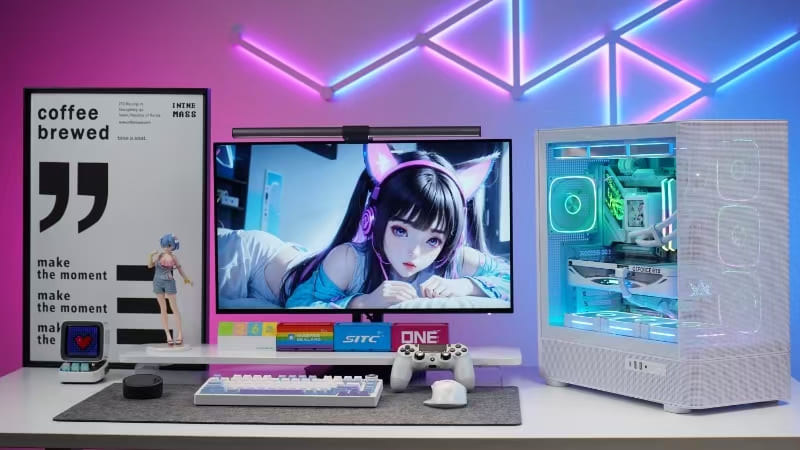
Building a white PC is a great way to create a bright, modern gaming setup. But choosing white components is only the beginning.
Different shades of white, mismatched RGB lighting, visible black cables, and incompatible hardware can make an expensive build look less coordinated than expected.
A successful white PC build starts with a compatible case, a consistent color theme, and a practical plan for cooling and cable management.
You don't need every component to be white. In fact, a carefully designed white-and-black build can look just as cohesive while giving you more hardware options.
This guide explains how to match white PC components, choose the right case, organize cables, and maintain a clean finish over time.
How Do You Plan a White PC Build Without Overspending?
Before shopping for white components, decide what your computer needs to do.
A gaming PC, video-editing workstation, and everyday desktop may require different processors, graphics cards, cooling systems, and storage configurations.
Those performance requirements should determine your hardware budget.
Once you know which components you need, choose a compatible white PC case and use its appearance as the visual reference for the rest of the build.
Does Every Component Need to Be White?
No. An all-white gaming PC can look attractive, but it often requires more careful shopping and may limit your component choices.
There are three practical ways to create a white PC:
Color ThemeMain ComponentsBest ForAll-whiteWhite case, cooler, fans, cables, and visible hardwareA unified showcase appearanceWhite and blackWhite case and fans with black motherboard or GPU detailsFlexible component selectionWhite with accentsWhite base with silver, gray, wood, or subtle RGB accentsA more personalized setup
For many builders, white and black is the easiest combination to maintain.
Black connectors, motherboard sockets, and PCB sections naturally become part of the design rather than appearing mismatched.
Is an All-White PC More Expensive?
It can be.
White versions of certain motherboards, graphics cards, cooling products, and accessories may cost more than comparable black models.
However, pricing varies by product and availability.
A white finish does not inherently improve gaming performance, cooling capacity, or component reliability.
If choosing a white graphics card forces you to compromise on performance, consider a standard black or silver model instead.
You can learn more about these pricing differences in our guide to why white PC components can cost more.
Spend on performance and compatibility first. Use color choices to bring the finished system together.
How Can You Match White PC Components?
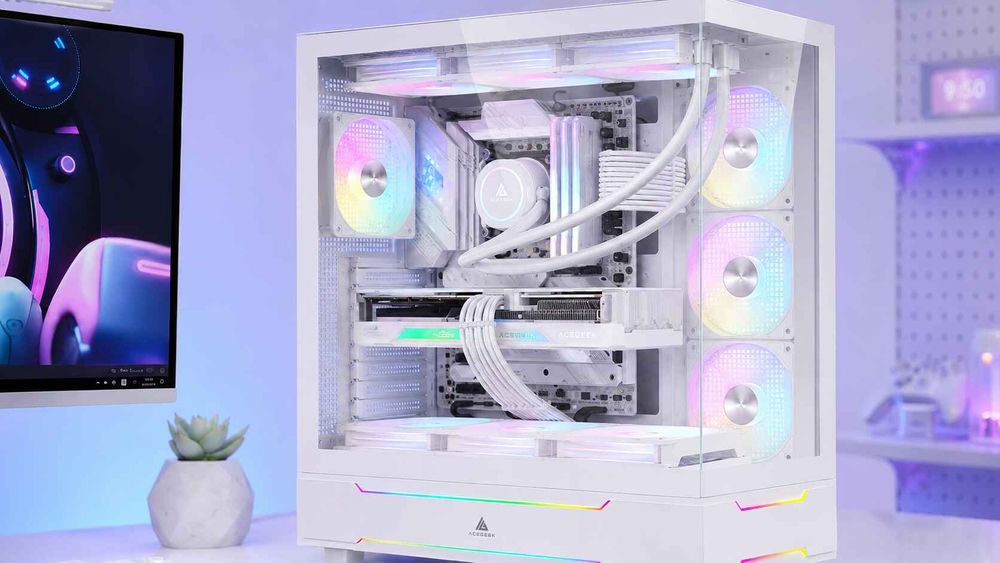
One challenge with an all-white PC build is that white is not a single standardized color.
Painted steel, molded plastic, anodized aluminum, cable sleeves, and LED diffusers can all appear different under the same lighting.
For example, a white case may have a neutral finish while the fan frames appear slightly warmer or the cable sleeves look cream-colored.
These differences are normal and do not necessarily indicate poor manufacturing quality.
Choose One Dominant White Finish
Use the chassis as your primary color reference because it occupies the largest visible area.
Then focus on matching the most noticeable components:
CPU cooler or AIO pump cover
Fan frames and lighting diffusers
Graphics card shroud and backplate
Cable extensions
Memory heatspreaders
Visible motherboard heatsinks
You don't need every part to match perfectly.
A consistent mix of matte white, silver, and black often looks more intentional than several competing shades of white.
Match Surface Finishes, Not Just Colors
Surface texture can be as important as color.
A matte white PC case may look more consistent with matte fan frames and braided cables than with highly glossy plastic components.
When comparing products, consider:
ComponentWhat to MatchPC caseOverall white shade and panel textureGPUShroud, backplate, and visible accentsCPU coolerPump cover or heatsink finishFansFrame color, blade appearance, and lighting styleRAMHeatspreader and RGB diffuserCablesSleeve color and visible connector finish
Product photographs may use different lighting and editing settings.
Whenever possible, compare manufacturer galleries and completed build photographs under similar lighting conditions.
Use Contrast Deliberately
A white case with a black motherboard is not an unsuccessful white build.
Black can provide useful visual contrast, especially around the CPU socket, graphics card, and internal connectors.
Instead of trying to hide every dark component, keep the contrast consistent.
For example, white cooling fans, a white AIO, black motherboard details, and neatly routed black or white power cables can create a balanced appearance.
What Should You Check Before Buying a White PC Case?
Appearance is important, but compatibility should determine whether a case belongs on your shortlist.
Before choosing a white PC case, check whether it supports your planned motherboard, graphics card, cooler, power supply, and cable layout.
ComponentCompatibility CheckMotherboardATX, Micro-ATX, Mini-ITX, or E-ATX supportGraphics cardLength, thickness, height, and power connector spaceCPU air coolerMaximum installed heightAIO liquid coolerRadiator dimensions, fan thickness, and mounting clearancePower supplySupported form factor, length, and cable spaceCase fansMounting sizes and control connectionsFront I/OMotherboard compatibility with USB and audio headersCable managementSpace behind the motherboard and accessible routing openings
Why GPU Clearance Matters
A graphics card may fit within the published maximum length while still creating installation problems.
For example, a front-mounted radiator can reduce the available GPU space if it occupies the same area.
Thick graphics cards may also interfere with bottom-mounted fans or leave limited room for power cables near the side panel.
Check the complete GPU dimensions and follow the power connector manufacturer's cable-routing requirements.
Don't Overlook Radiator and RAM Clearance
If you plan to use a white AIO liquid cooler, verify more than its advertised radiator size.
A top-mounted radiator may interfere with tall RGB memory or motherboard heatsinks.
Its physical length, width, and combined thickness with fans all matter.
When possible, check the case manual for configuration-specific clearance restrictions.
For a more complete purchasing checklist, see our PC part compatibility guide.
The right case should accommodate your planned components comfortably without forcing unsafe cable bends or awkward cooling arrangements.
How Do You Keep White Cables and RGB Lighting Consistent?
Cable management and lighting are especially noticeable in white PC builds because a bright interior creates strong contrast around dark wires and mismatched LEDs.
The goal is to keep the visible side organized without making future maintenance difficult.
Route Cables Before Adding Decorative Accessories
Start with the essential connections:
24-pin motherboard power cable
CPU EPS power cable
GPU power cable
Front-panel USB and audio cables
Fan and ARGB connections
Storage power and data cables
Route cables through the nearest suitable openings and secure them behind the motherboard tray.
Reusable hook-and-loop straps can make future upgrades easier than tightly bundling everything with permanent cable ties.
Avoid placing large connector bundles where they prevent the rear panel from closing properly.
Are White Cable Extensions Safe?
Compatible, properly installed cable extensions can improve the appearance of a build.
However, extensions add connection points and require additional routing space.
Use products that meet the electrical requirements of your hardware, and follow the power supply and GPU manufacturers' instructions.
Never substitute modular PSU replacement cables merely because they use similar-looking connectors.
PSU-side cable pinouts can differ between manufacturers and models. Use only cables specifically approved for your exact power supply.
How Do You Match White RGB Lighting?
RGB lighting can introduce another type of color mismatch.
Different LED designs may produce different shades of white even when the software sends the same color value.
For more consistent lighting:
Use matching fan models where practical.
Connect compatible ARGB devices through an appropriate controller.
Start with one static lighting color.
Adjust brightness before fine-tuning individual colors.
Avoid running multiple conflicting lighting applications.
Check the appearance under your normal room lighting.
Lower or moderate brightness may reduce glare and make slight differences between LED diffusers less noticeable.
Remember that software synchronization does not guarantee identical physical color output.
Our guide to keeping RGB fan lighting consistent explains controller selection and troubleshooting in greater detail.
How Can You Maintain Good Airflow in a White PC?
A white gaming PC needs the same effective cooling as any other computer.
Paint color does not compensate for restricted intake openings, insufficient exhaust ventilation, or poor fan placement.
Whether your build uses mesh panels or panoramic glass, the important question is how fresh air reaches the CPU and GPU.
Plan Intake and Exhaust Around Your Case
For a conventional tower case, a practical starting arrangement is front intake with rear exhaust.
A panoramic white PC case may instead use side and bottom intake fans, with top and rear exhaust.
Cooling LocationCommon ConfigurationPurposeFront fansIntakeBring external air into a conventional towerSide fansIntakeSupply air to the main chamberBottom fansIntakeHelp deliver fresh air toward the GPURear fanExhaustRemove warm air from the chassisTop fans or radiatorOften exhaustProvide an additional route for heated air
These are starting points, not mandatory configurations.
Fan placement should reflect the chassis design, cooler arrangement, and thermal requirements of the hardware.
Don't Sacrifice Airflow for Appearance
A clean-looking white build should not require blocking intake vents or squeezing a large GPU into a restricted space.
Before adding decorative covers or extra lighting hardware, confirm that:
Intake openings remain unobstructed.
GPU fans have enough breathing room.
Radiator fans have suitable clearance.
Cables do not contact moving fan blades.
Dust filters remain accessible.
Heated air has an effective exhaust path.
More fans do not automatically produce better cooling.
A smaller number of correctly positioned fans may outperform a larger setup with restrictive ventilation and poorly adjusted fan speeds.
For additional airflow planning advice, see our high-airflow PC building guide.
How Do You Clean a White PC Case Without Damaging It?
White PC cases do not necessarily attract more dust than black ones.
However, dark grime, fingerprints, and certain stains can be more noticeable against light-colored surfaces.
Regular maintenance helps preserve the appearance of the finish while preventing dust from restricting airflow.
Cleaning White Exterior Panels
For routine cleaning:
Shut down and unplug the PC before deeper maintenance.
Remove loose dust using a clean microfiber cloth.
For marks that require moisture, use a lightly dampened cloth if permitted by the manufacturer.
Apply any approved cleaning solution to the cloth rather than directly to the chassis.
Dry the surface with a separate clean cloth.
Avoid abrasive pads, strong solvents, and aggressive household cleaning products.
Do not assume that alcohol-based cleaners are suitable for every white painted surface, plastic trim, or printed panel.
Different coatings and materials may require different cleaning methods.
Cleaning Tempered Glass Panels
Tempered glass should be cleaned separately from painted and plastic components.
Use a clean microfiber cloth and an appropriate cleaning method approved by the case manufacturer.
Remove fingerprints gently, avoid excessive moisture, and dry the surface before reinstalling removable panels.
Support the glass carefully during removal and keep its edges away from hard surfaces.
For a detailed method, read our guide to cleaning tempered glass PC case panels without streaks.
Keeping Dust Filters and Fans Clean
Inspect intake filters and ventilation openings regularly.
Cleaning frequency depends on the environment rather than the case color.
A PC located near carpeting, pets, open windows, or construction dust may need more frequent attention.
When cleaning the interior:
Disconnect power.
Use suitable low-force cleaning tools.
Prevent fans from spinning freely when using compressed air.
Avoid touching exposed electrical contacts.
Never open the PSU enclosure for routine cleaning.
Accessible filters and removable panels make maintenance easier over the life of the computer.
Do White PC Cases Turn Yellow?
Some white components can discolor over time, but yellowing is not inevitable.
Painted steel, plastic trim, adhesives, and cable sleeves may respond differently to sunlight, heat, contaminants, and aging.
To reduce the risk of discoloration, avoid prolonged direct sunlight, cigarette smoke, and unsuitable cleaning chemicals.
Use manufacturer-approved products rather than attempting to restore a white finish with abrasive whitening treatments.
Which ACEGEEK White PC Cases Should You Consider?
ACEGEEK offers white case options with different motherboard support, cooling layouts, and component-clearance limits.
Two examples are the Lucid and Cruiser L460 (Pro).
ACEGEEK Lucid: A Compact White Build Option
The ACEGEEK Lucid is available in white and black finishes.
Its published specifications include:
SpecificationACEGEEK LucidMotherboard supportMicro-ATX / Mini-ITXMaximum GPU clearance400mmMaximum CPU cooler height165mmTop radiator support360mm / 280mmSide radiator support280mm / 240mmCase dimensions420 × 285 × 365mm
The Lucid provides a compact chassis option for builders planning a Micro-ATX or Mini-ITX system.
Its top and side radiator positions allow different cooling arrangements, provided the selected hardware fits.
The case is also presented as a back-connecting design, which can be useful for reducing visible wiring when paired with a compatible rear-connector motherboard.
However, rear-connector compatibility must be confirmed for the exact motherboard model.
ACEGEEK Cruiser L460 (Pro): More Motherboard Options
The ACEGEEK Cruiser L460 (Pro) is another option available in white.
Its published specifications include:
SpecificationACEGEEK Cruiser L460 (Pro)Motherboard supportE-ATX / ATX / Micro-ATX / Mini-ITXMaximum GPU clearance410mmMaximum CPU cooler height165mmTop radiator support360mmSide radiator support240mmCase dimensions420 × 210 × 485mm
The Cruiser L460 (Pro) offers broader listed motherboard-format support and a different internal layout.
It is worth considering for builders who need ATX motherboard compatibility or want to evaluate an E-ATX configuration.
However, the E-ATX label alone does not confirm compatibility with every wide E-ATX motherboard. Check the exact board dimensions and cable access before purchase.
Which White PC Case Should You Choose?
The Lucid may suit a compact, visually focused Micro-ATX build.
The Cruiser L460 (Pro) provides broader motherboard support and a more conventional tower-like footprint.
Neither is automatically better for cooling or visual consistency.
Compare your specific motherboard, GPU, CPU cooler, radiator, fan layout, and cable requirements before choosing.
A white case should meet your hardware needs first and complement the rest of the build second.
Frequently Asked Questions
Can I build a white PC with a black motherboard?
Yes. A black motherboard can work well inside a white case, especially when other components use a coordinated white-and-black color scheme. Matching every visible part to the same color is not necessary.
How do I make white PC components look consistent?
Start with the case as the main color reference. Match the most visible components, use similar surface finishes, choose a coordinated fan family, and keep RGB brightness consistent. Intentional black or silver accents can help unify different shades of white.
Is an all-white gaming PC worth the extra cost?
It depends on your priorities and the price difference between available components. White hardware does not inherently improve performance, so avoid sacrificing important specifications simply to achieve a uniform color scheme.
How often should I clean a white PC case?
Inspect the exterior and dust filters regularly, then clean them when buildup becomes noticeable. The appropriate frequency depends on room conditions, filter design, airflow, and where the computer is positioned.
What is the easiest way to keep a white PC looking clean?
Choose a case with accessible filters and panels, organize visible cables, avoid excessive RGB glare, and use manufacturer-approved cleaning methods. Keeping the PC away from prolonged direct sunlight and airborne contaminants can also help protect its appearance.
Build a White PC That Looks Good Beyond Day One
A successful white PC build combines aesthetics with practical hardware choices.
Start with your performance requirements, choose a compatible white case, and develop a color scheme around the components that will be most visible.
Matching every shade perfectly is less important than maintaining consistent finishes, organized cables, and coordinated lighting.
Equally important, choose a cooling layout that supports your CPU and GPU and a case that remains easy to clean.
The best white PC is not necessarily the one with the most white components. It is the one that looks intentional, performs reliably, and stays easy to maintain over time.